

Set Account-Wide Brand Elements in Spokn
Last updated September 3, 2026
Use this guide to set your organization’s default brand elements in Spokn, including logos, brand colors, and animated intros, outros, and transitions. These settings apply across your workspace and make it easy for users to create videos that look and feel on-brand.
Overview
Spokn includes built-in brand presets so teams can create polished videos without advanced video editing or design work. As an Admin, you can configure these presets in Enterprise Tools → Branding:
- Company logos (light/white and dark/color versions
- Brand colors (saved as defaults)
- Animated intros, outros, and transitions (available as one-click presets in the editor)
Only Admins can update these account-wide defaults. Creators can use them while editing videos, but they cannot change the workspace-level settings.
Before You Begin
Make sure:
- You are logged in as a Spokn Admin
- You have the approved brand assets ready to upload:
- Light logo file
- Dark logo file
- Brand colors (HEX values recommended)
- Animation files for intros, outros, and transitions (if applicable)
Step 1: Open General Settings
- Log in to Spokn.
- Click Enterprise Tools.
- Navigate to the Branding section.
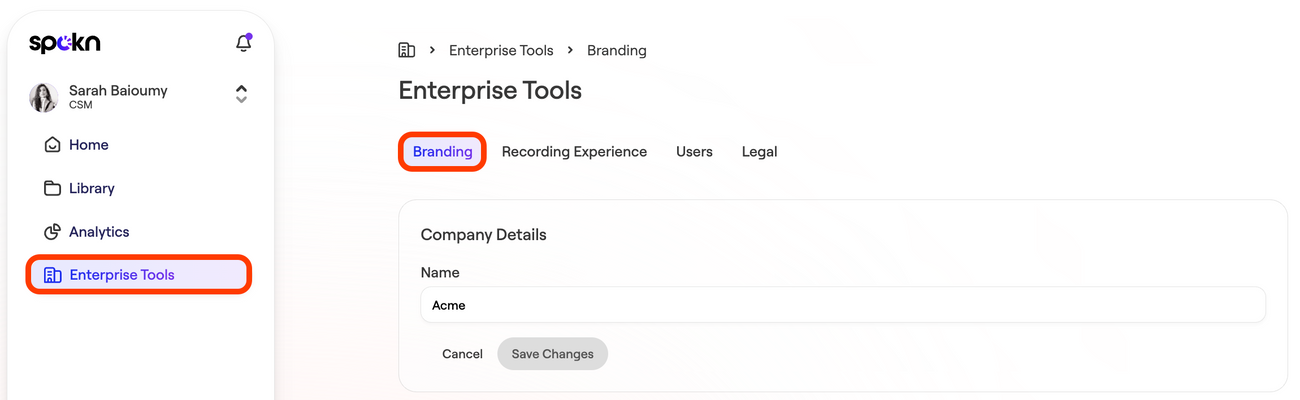
This is where account-wide brand elements are managed.
Step 2: Upload Logos
- In Branding, locate the Company Logos section.
- Upload:
- A Light/White Logo (for use on darker backgrounds)
- A Dark/Color Logo (for use on lighter backgrounds)
- Save your changes.
Logo specs:
- PNG files
- Transparent background
These logo versions become available as default brand elements throughout Spokn.
Step 3: Set Brand Colors
- In Branding, locate the Brand Colors section.
- Add your organization’s brand colors.
- Save your changes.
These colors are saved as defaults and can be applied quickly during editing.
Step 4: Upload Animated Intros, Outros, and Transitions
- In Branding, locate Animations.
- Upload your animation assets:
- Animated intro
- Animated outro
- Animated transition(s)
- Save your changes.
Important design specs can be found here .
Once saved, these animations are available as presets in the editor so users can apply them with a single click.
What Creators Can Access
Creators can use the workspace’s saved logos, colors, and animations when creating and editing their own video stories.
Creators cannot edit the account-wide defaults.
Optional: Customize Branding for a Single Video Story
In some cases, you may want branding that applies only to one project (for example, an ERG/BRG logo, a heritage month theme, or a recognition program identity).
To customize branding for one video story:
- Open the video story.
- Select the option to Customize the story.
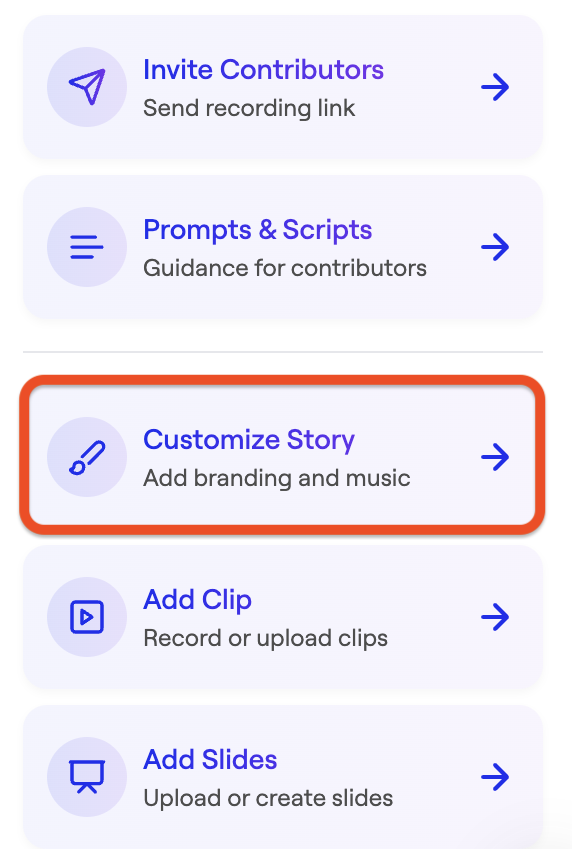
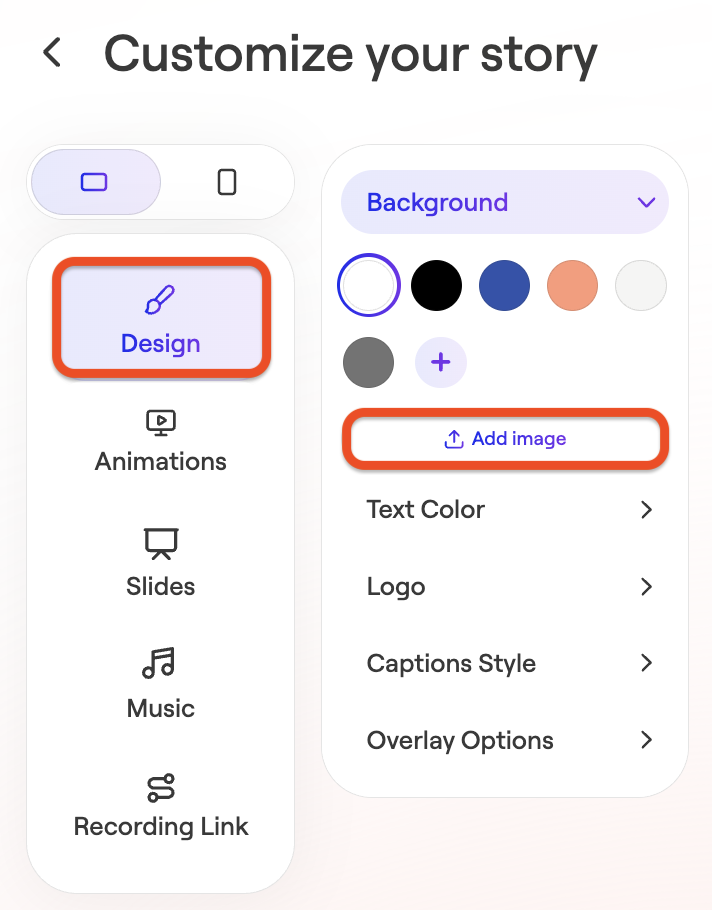
- Upload or adjust design assets such as:
- Backgrounds
- Text Color selections
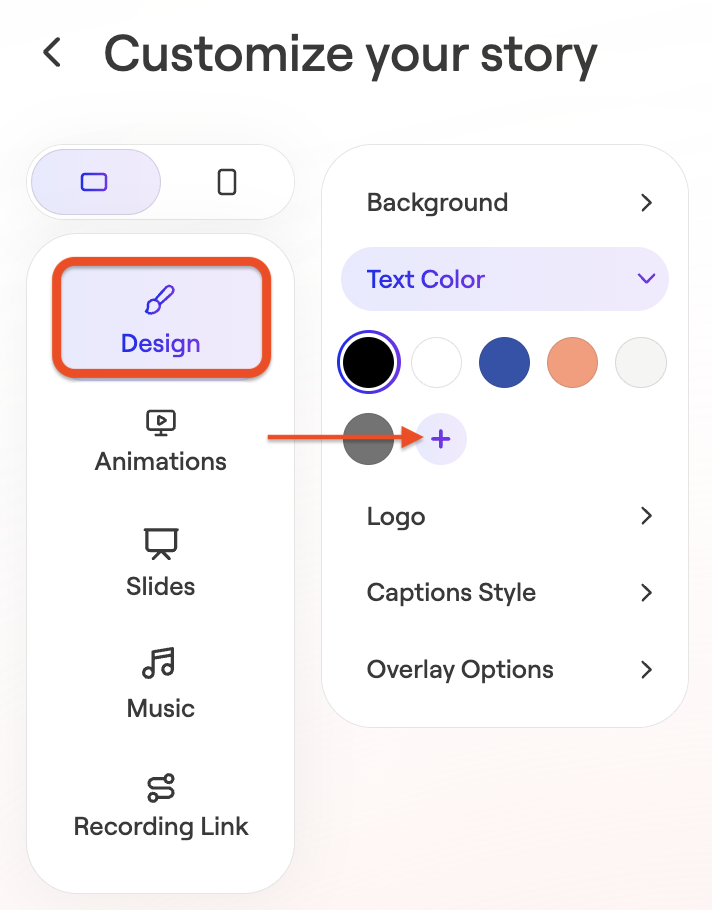
- Alternative logos
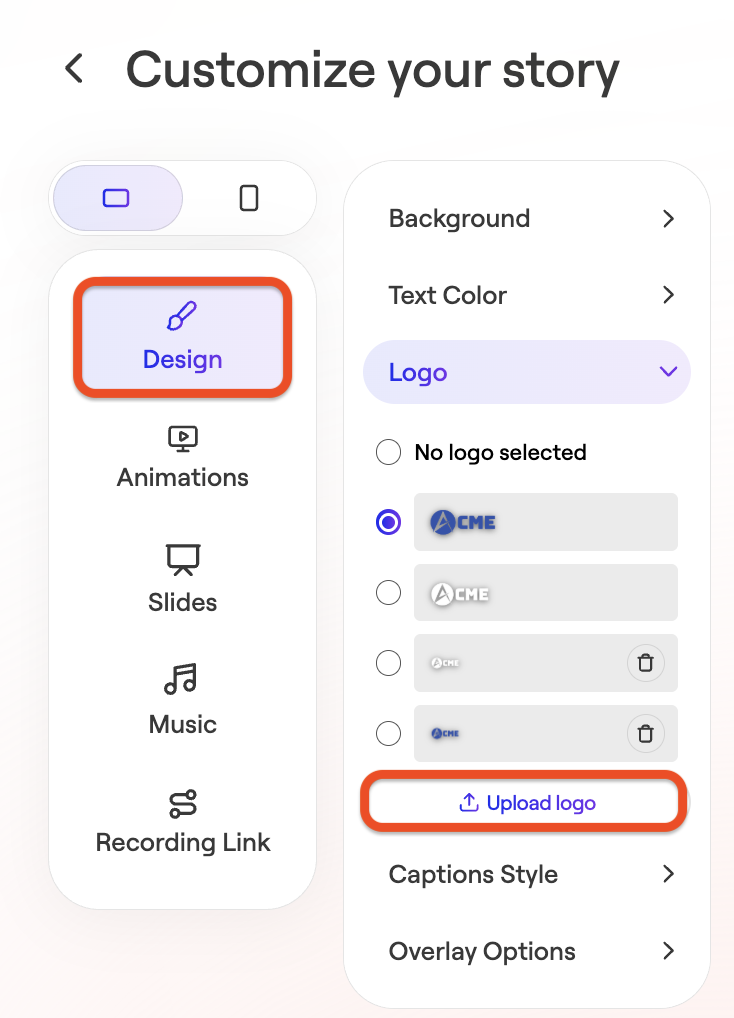
These changes apply only to that specific video story and do not change the account-wide defaults.