

How to Adjust Branding on Your Story
Last updated July 21, 2026
Overview
We strongly recommend customizing the branding on your video stories to match your company's brand guidelines and make your content pop.
Spokn's branding features make this easy to do - even if you have no design background. Your account has already been pre-populated with your company logos, brand colors, and approved animations to make aligning with your brand standard a cinch.
Customize Branding
- Open your story.
- Click Customize.
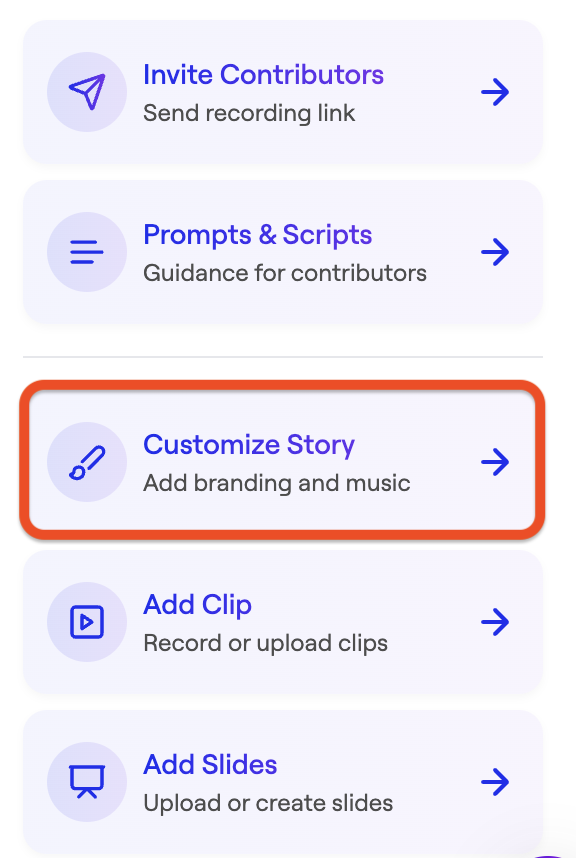
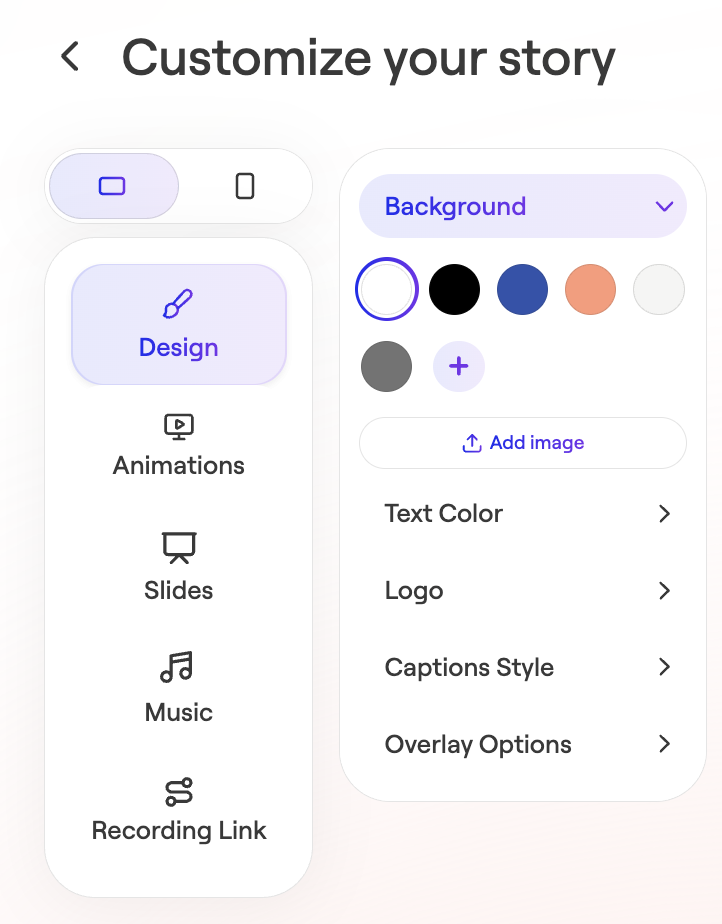
- Edit Design:
- Backgrounds: Colors
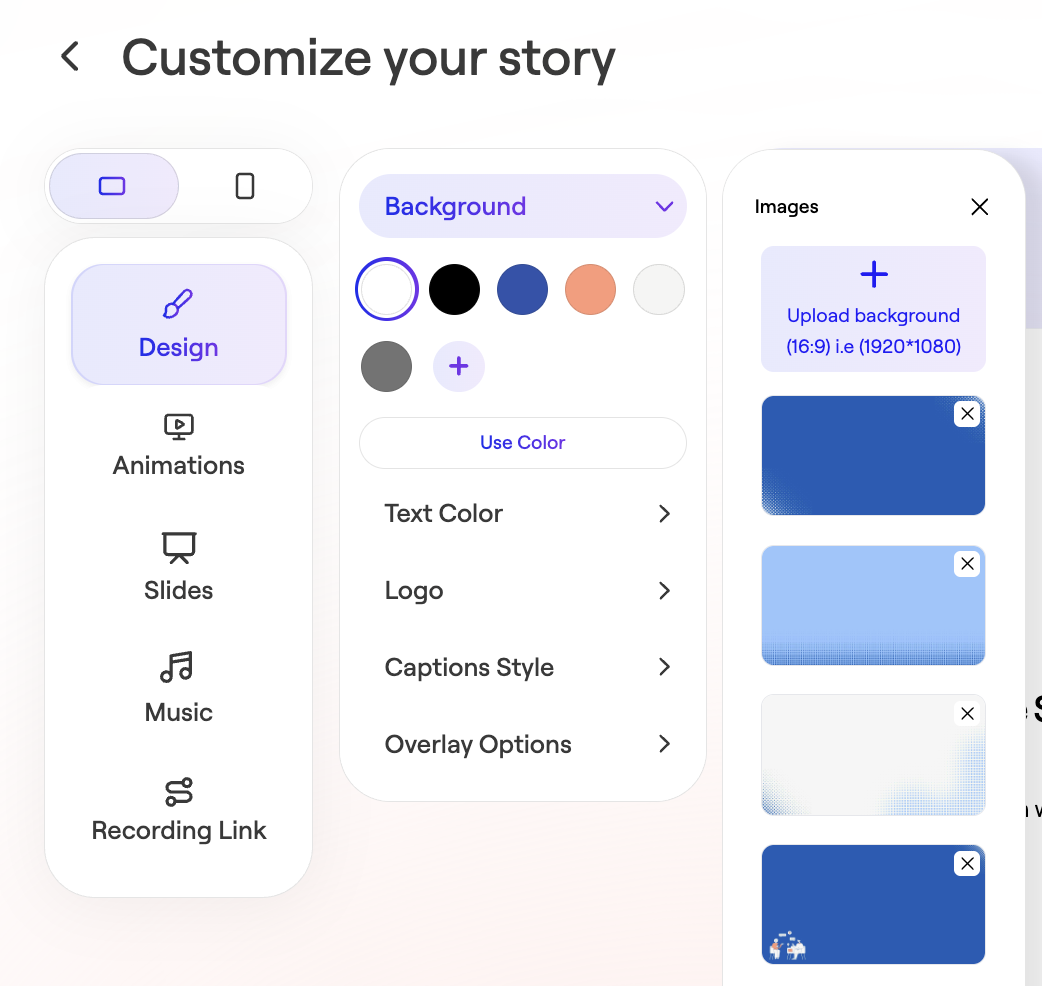
- Backgrounds: Images
You can add as many backgrounds as you like and remove old ones in this section.
To add backgrounds, click Upload background:
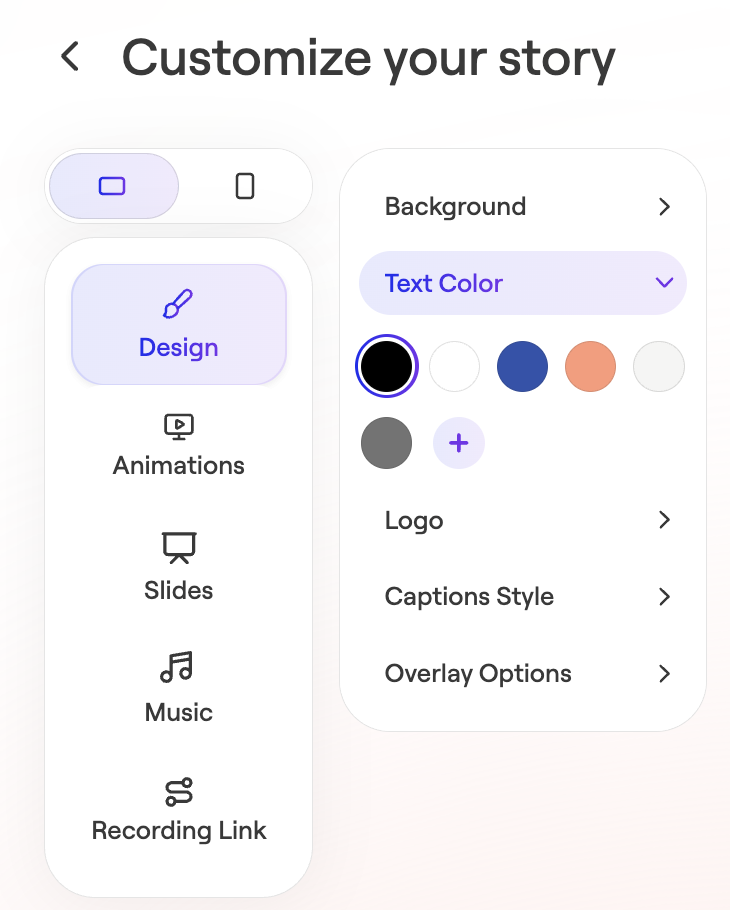
- Text Colors
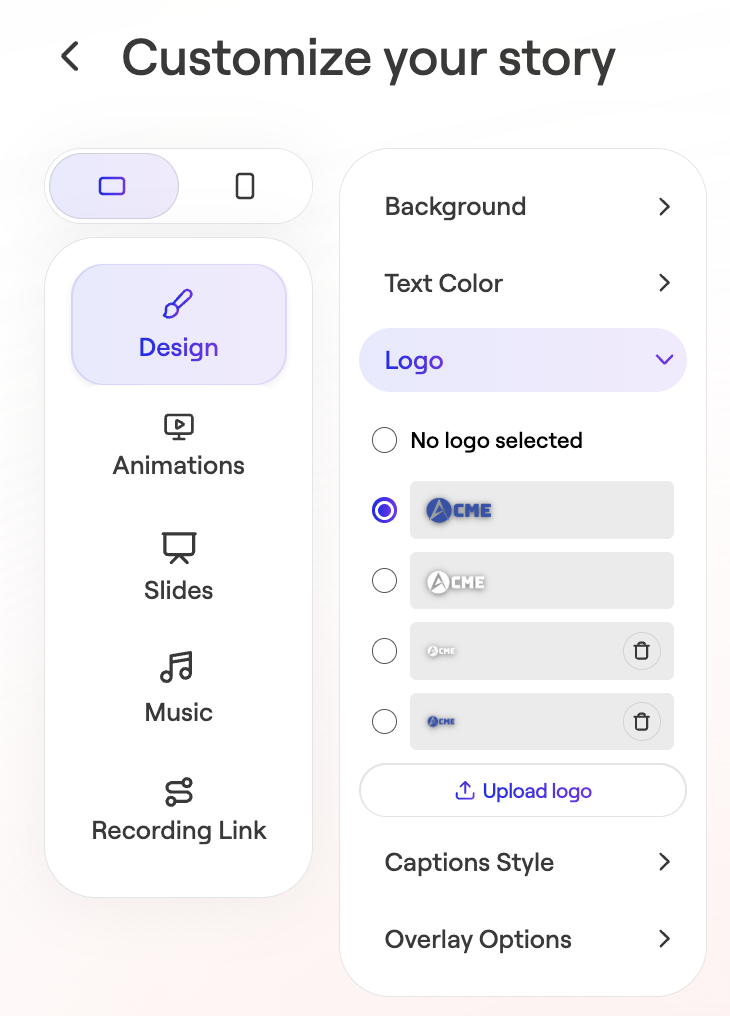
- Logos
You can add as many logos as you like and remove old ones in this section.
To add logos, click Upload logo:
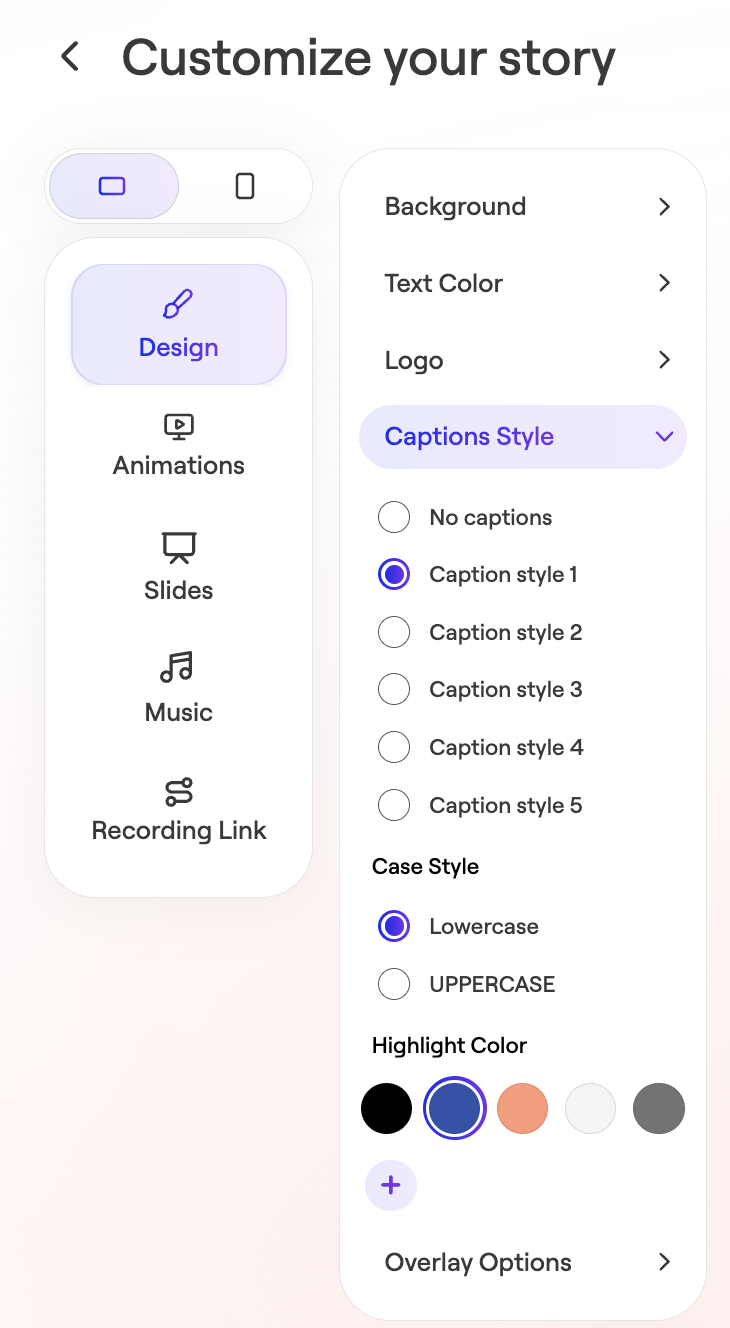
- Caption styles
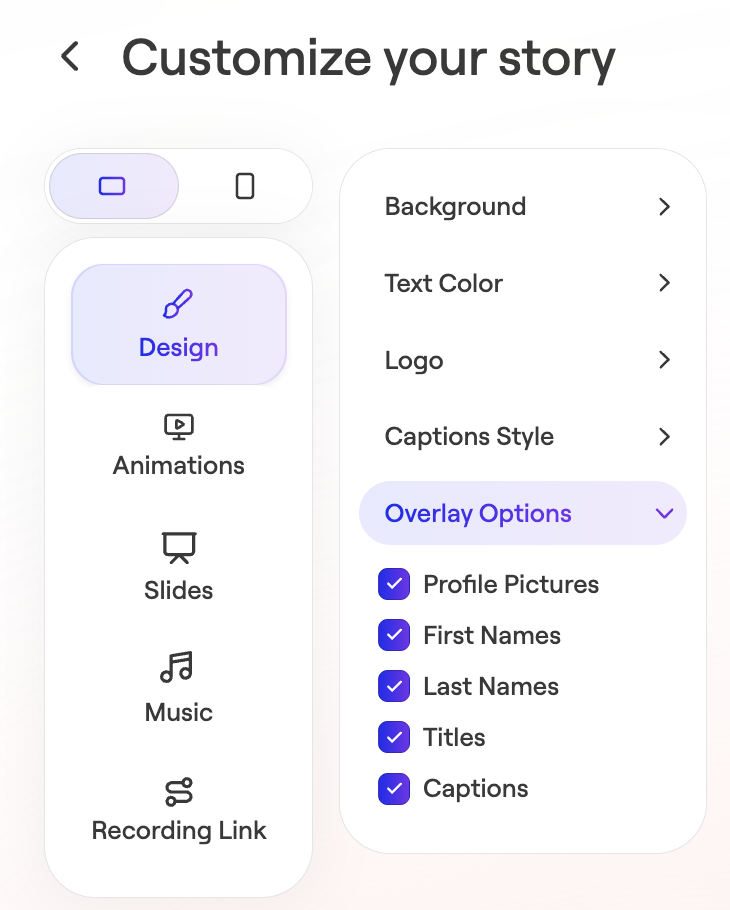
- Overlay options
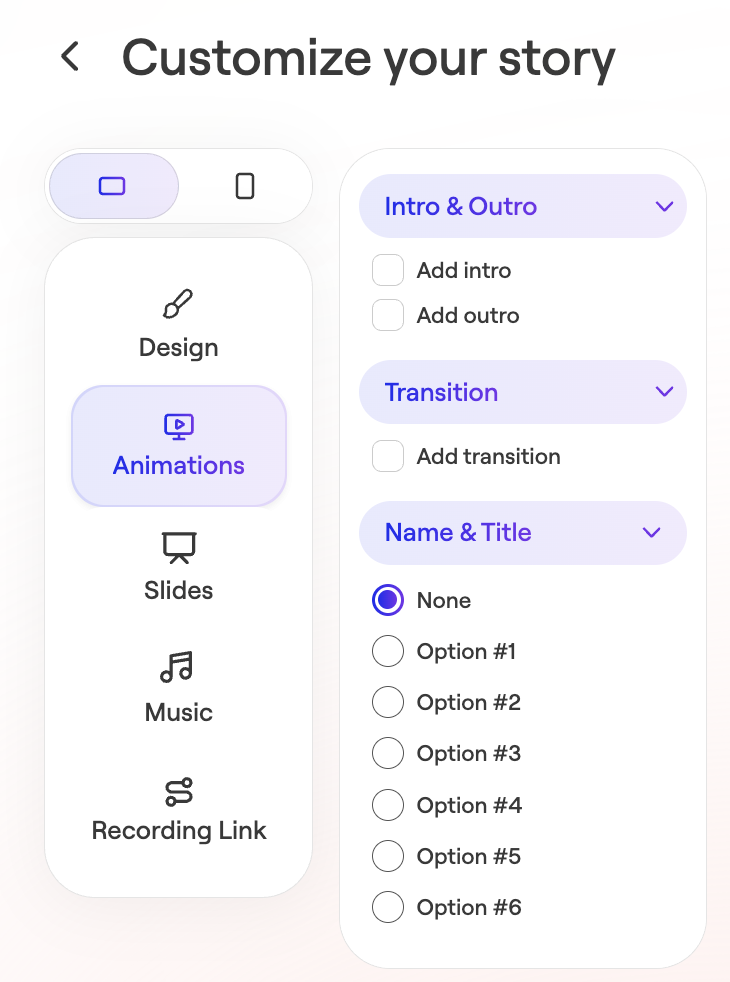
- Add Animations
- Edit Slides
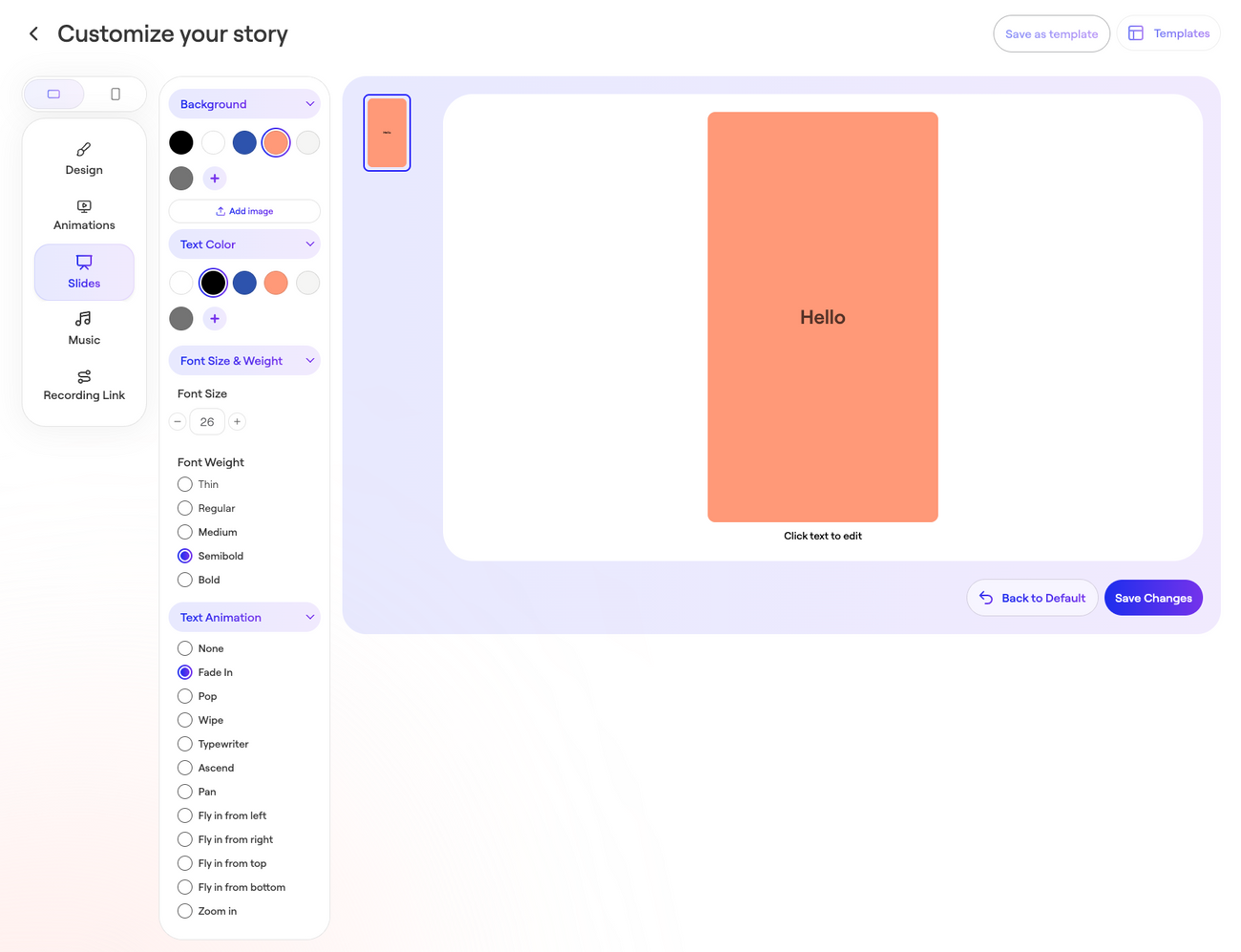
- Add Music
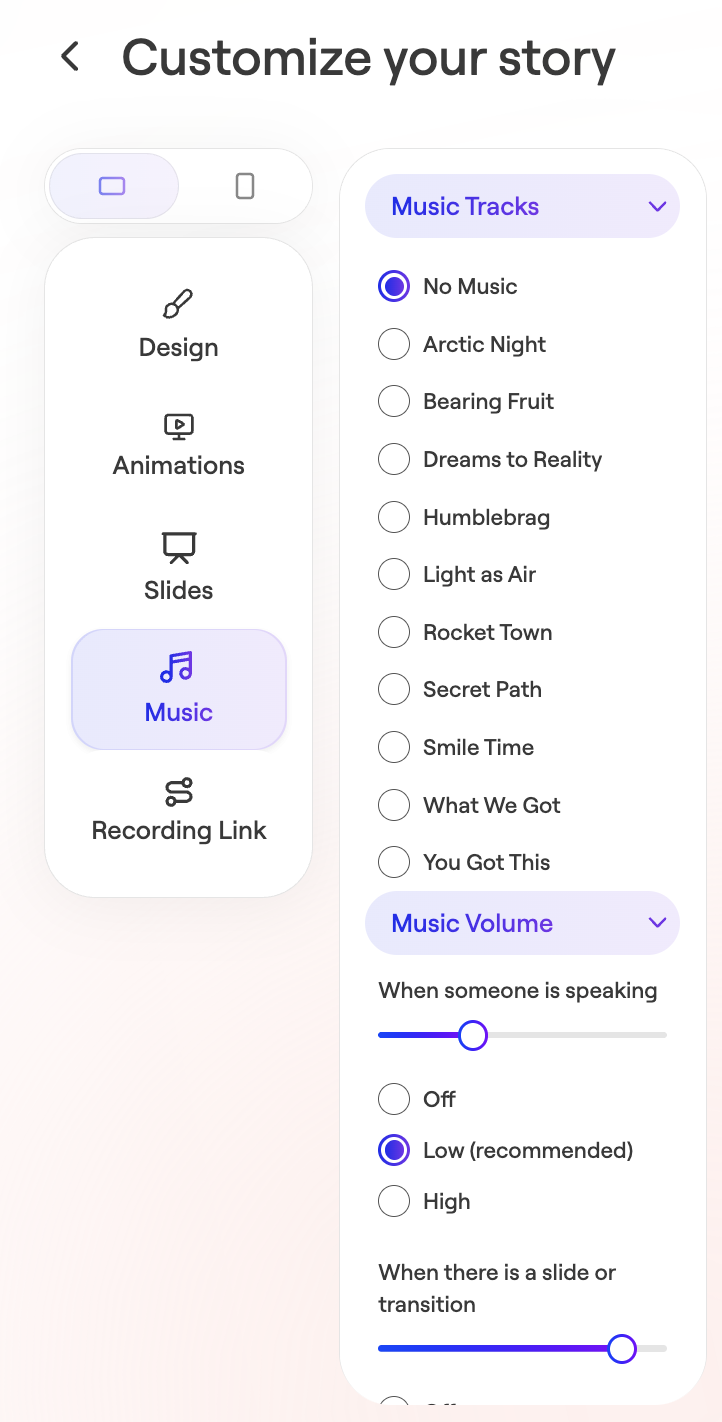
Changes apply only to this story unless account-wide settings are modified.
Backgrounds Best Practices
- Keep it simple – Solid colors, gradients, or minimal graphic elements work best.
- Avoid photography and busy patterns – High-contrast or "loud" images make text hard to read and hurt accessibility.
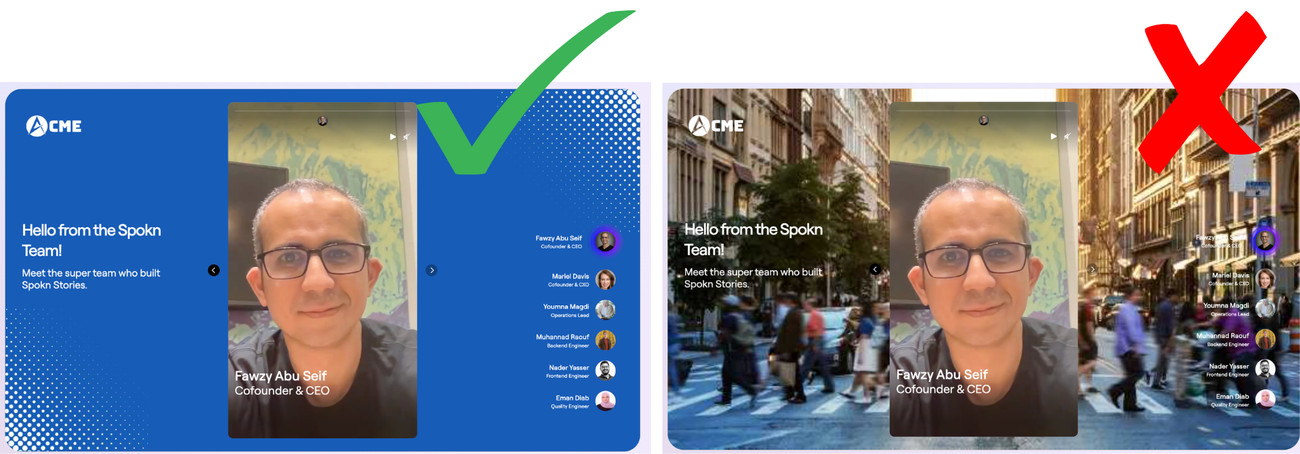
Note: Story backgrounds are responsive and adapt to different screen sizes when videos are viewed via a shared link. Because of this, simple backgrounds such as gradients, subtle patterns, and abstract graphics tend to provide the most consistent viewing experience.
Backgrounds that include logos, text, screenshots, or detailed photography may appear cropped, stretched, or repositioned on certain devices and screen sizes when viewed via link.
This limitation does not apply to videos shared as MP4 files, since the video dimensions are fixed and will display exactly as exported.