

Story Customization Templates
Last updated July 21, 2026
Overview
Templates help you save time by reusing the same setup across videos.
You can create a template with your branding, prompts, and structure, then use it again instead of starting from scratch. This is especially useful for repeat content, campaigns, or teams working across multiple brands.
Templates
Templates let creators and admins save and reuse video project designs so you don’t have to rebuild everything each time. Templates can include branding (colors, logos, backgrounds), lower thirds (names/titles), captions style, animated intros/outros, and music.
Templates are useful across a range of scenarios:
- Content series: Create templates for recurring series (CEO monthly message, big wins, employee spotlights, testimonials, etc)
- Sub-brands or partners: Set up templates with the right colors, backgrounds, and branding for each sub-brand
- Upskilling and training: Create consistent templates for each onboarding or training cohort
How to add templates
- Click Customize Story in your story
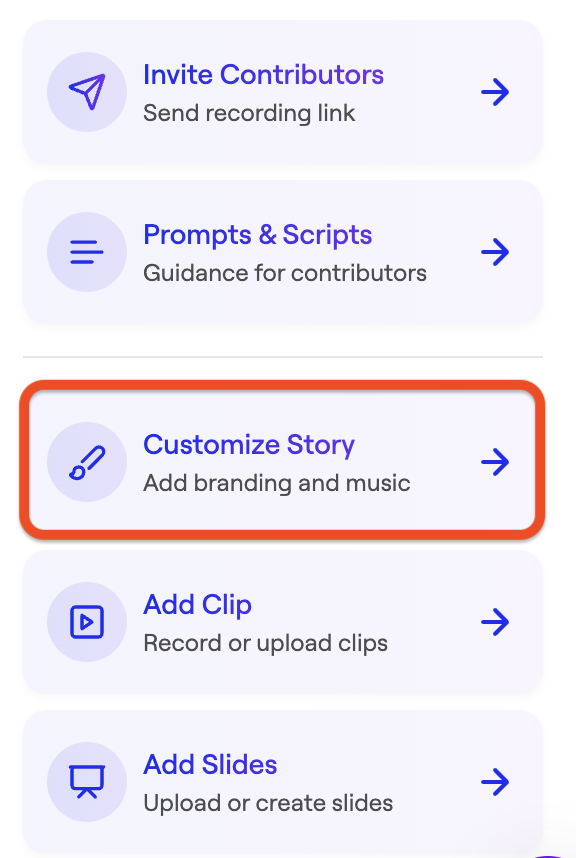
- Make your edits
- Click Save as template

How to use an existing template
- Click Customize Story in your story
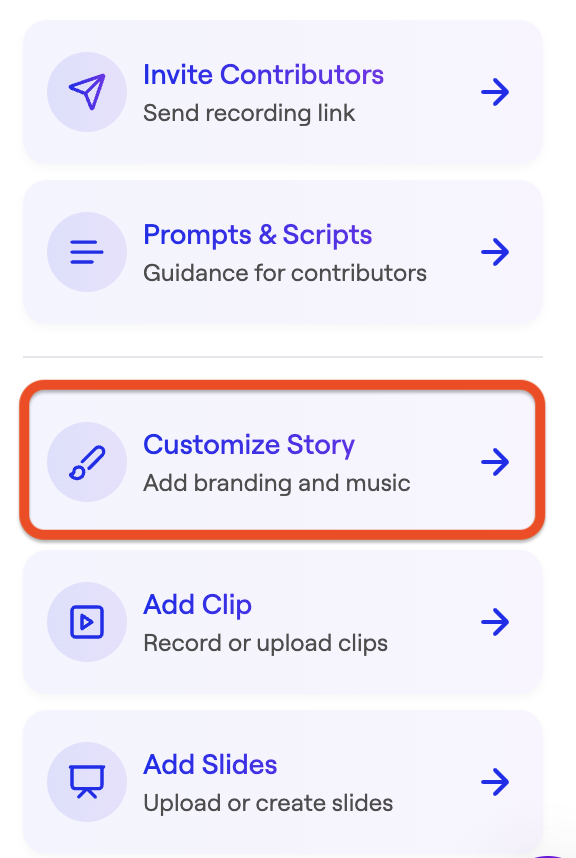
- Click Templates
- Select your template

Manage templates
In Templates, you can:
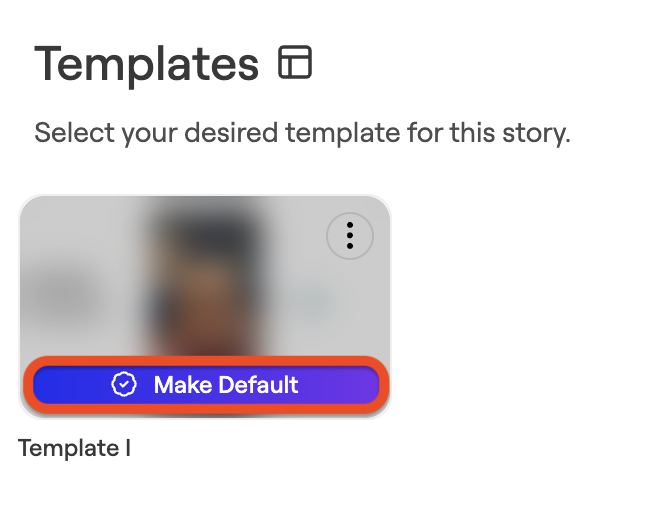
- Add a default template. This feature is available to admins only, and ensures that all videos started under the company's account will automatically feature the preferred design, which creators can then edit.
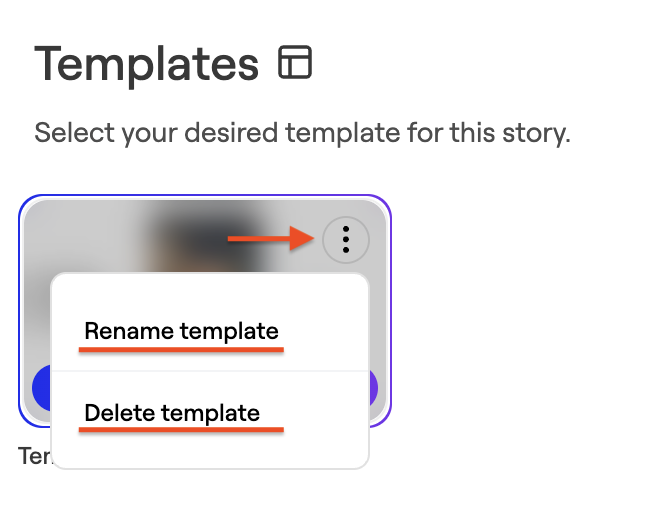
- Rename a template
- Delete a template
Was this article helpful?