

How to Allow Your Camera and Microphone
Last updated July 21, 2026
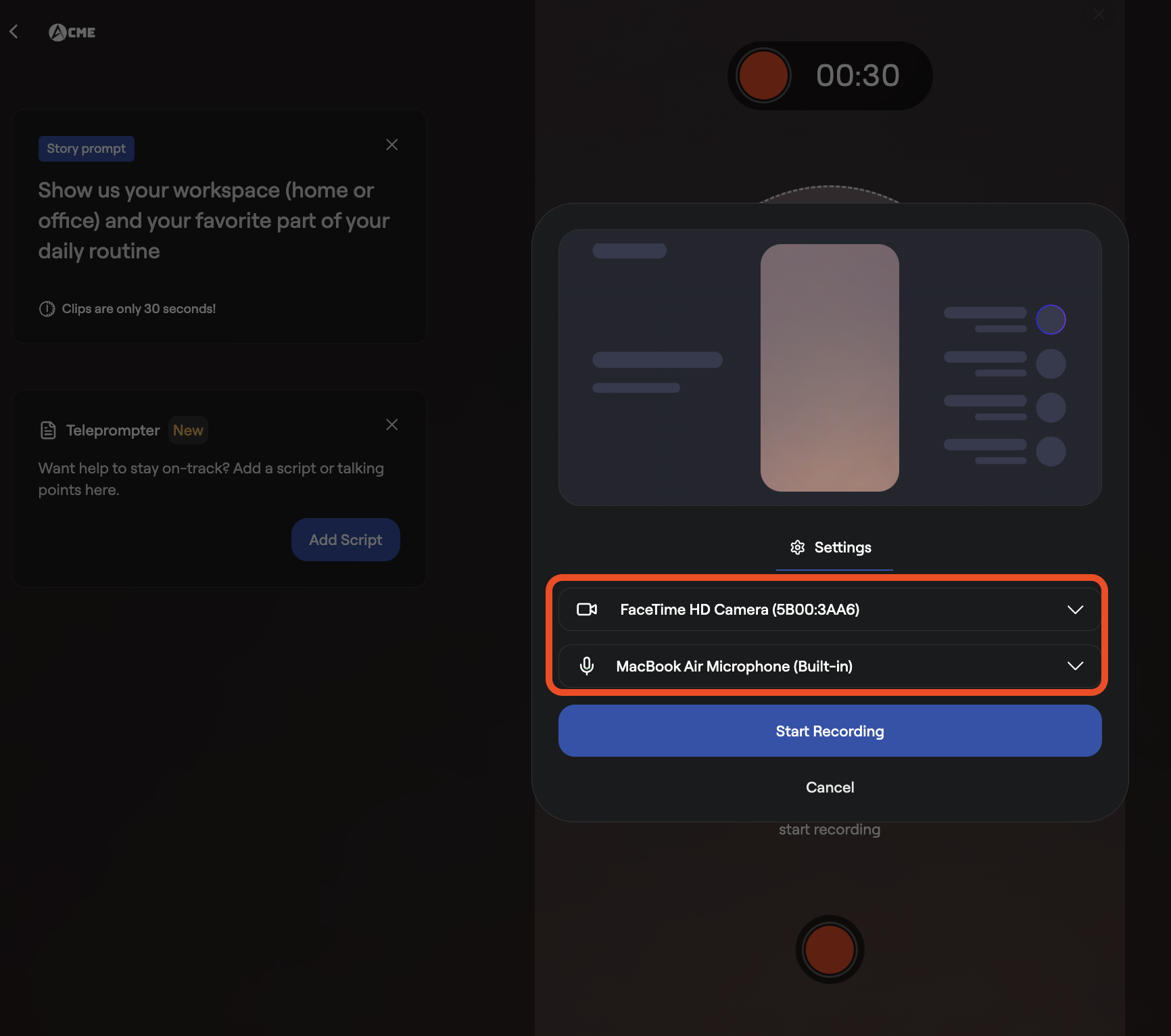
If this is your first time recording in Spokn, your browser or phone will ask for permission to use your camera and microphone.
On Desktop (Chrome, Edge, Safari)
- Click the recording link.
- When prompted, click Allow for:
- Camera access
- Microphone access
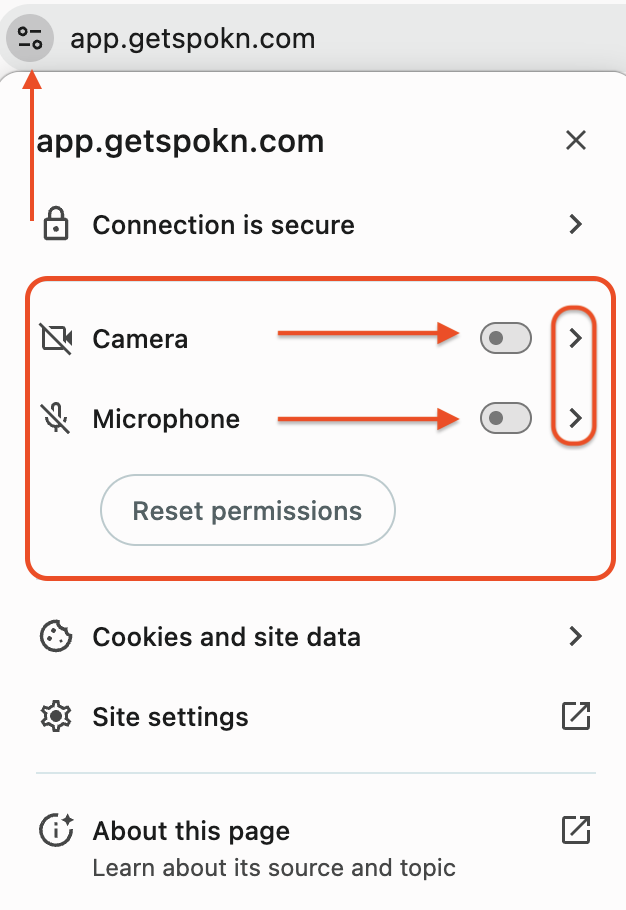
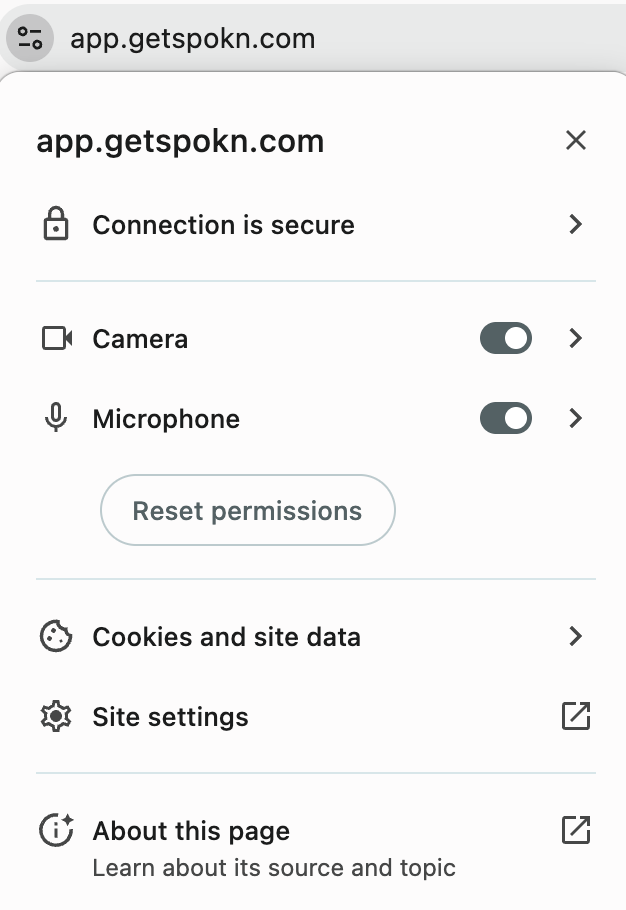
If you accidentally click “Block”:
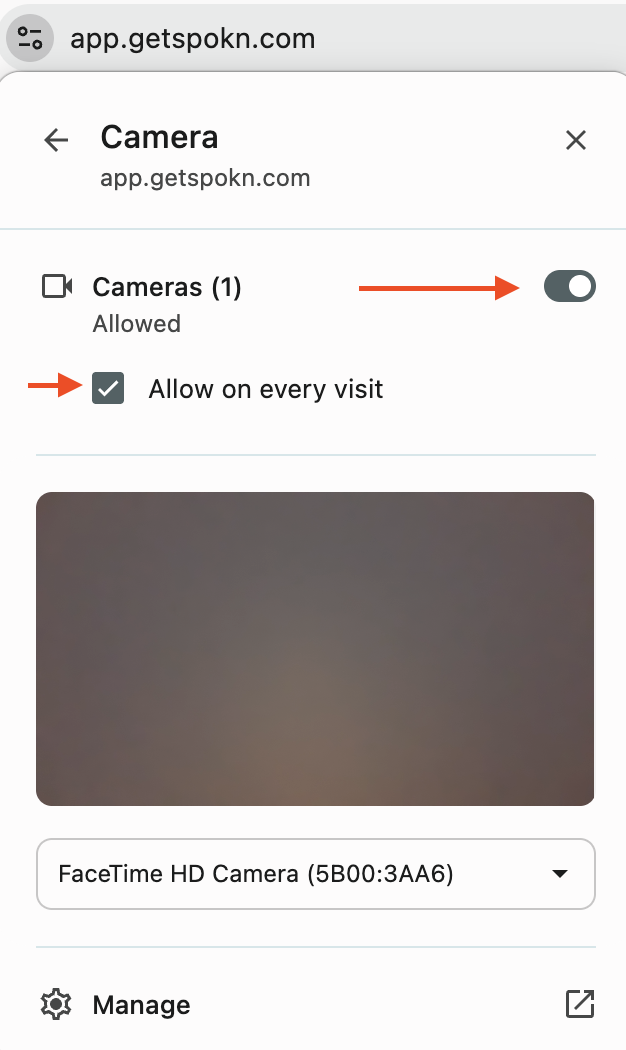
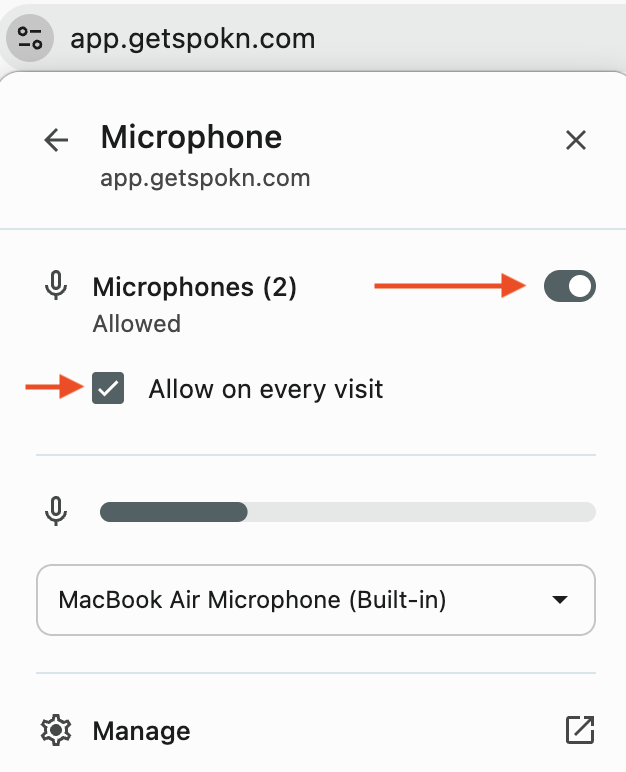
- Click the camera icon in your browser’s address bar
- Change permissions to Allow
- Refresh the page
On Mobile
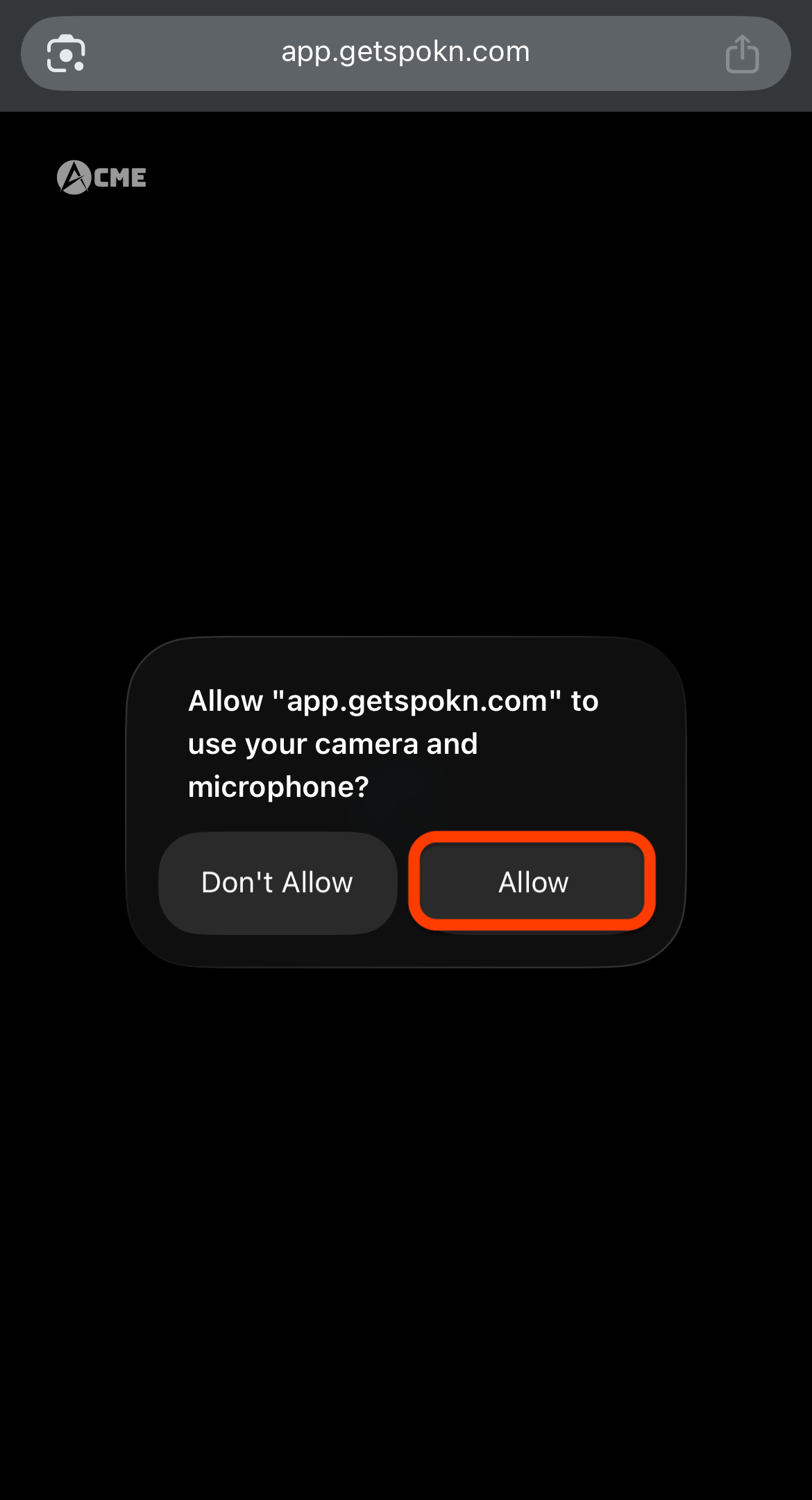
- Open the link in your browser.
- When prompted, tap Allow for camera and microphone access.
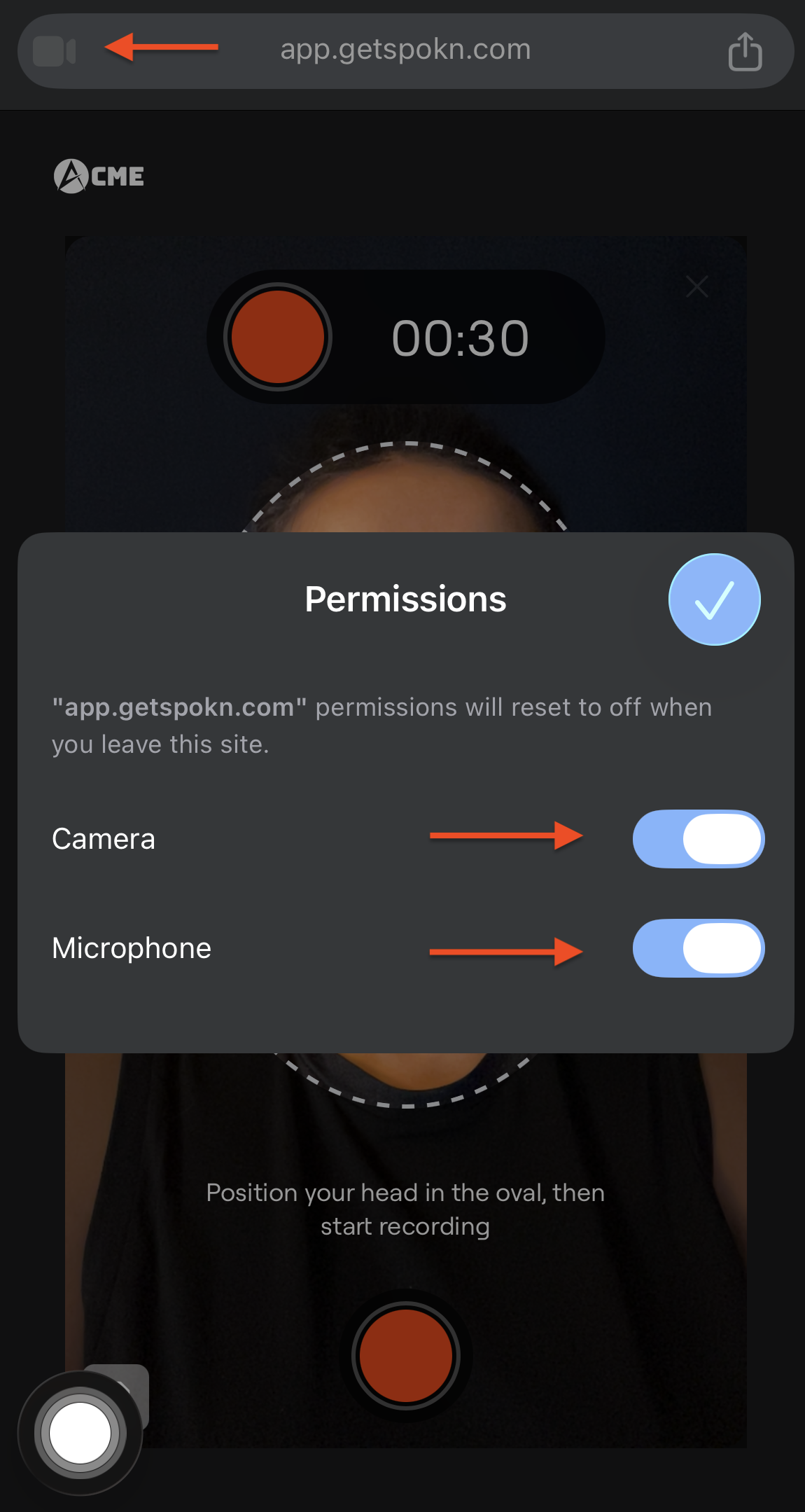
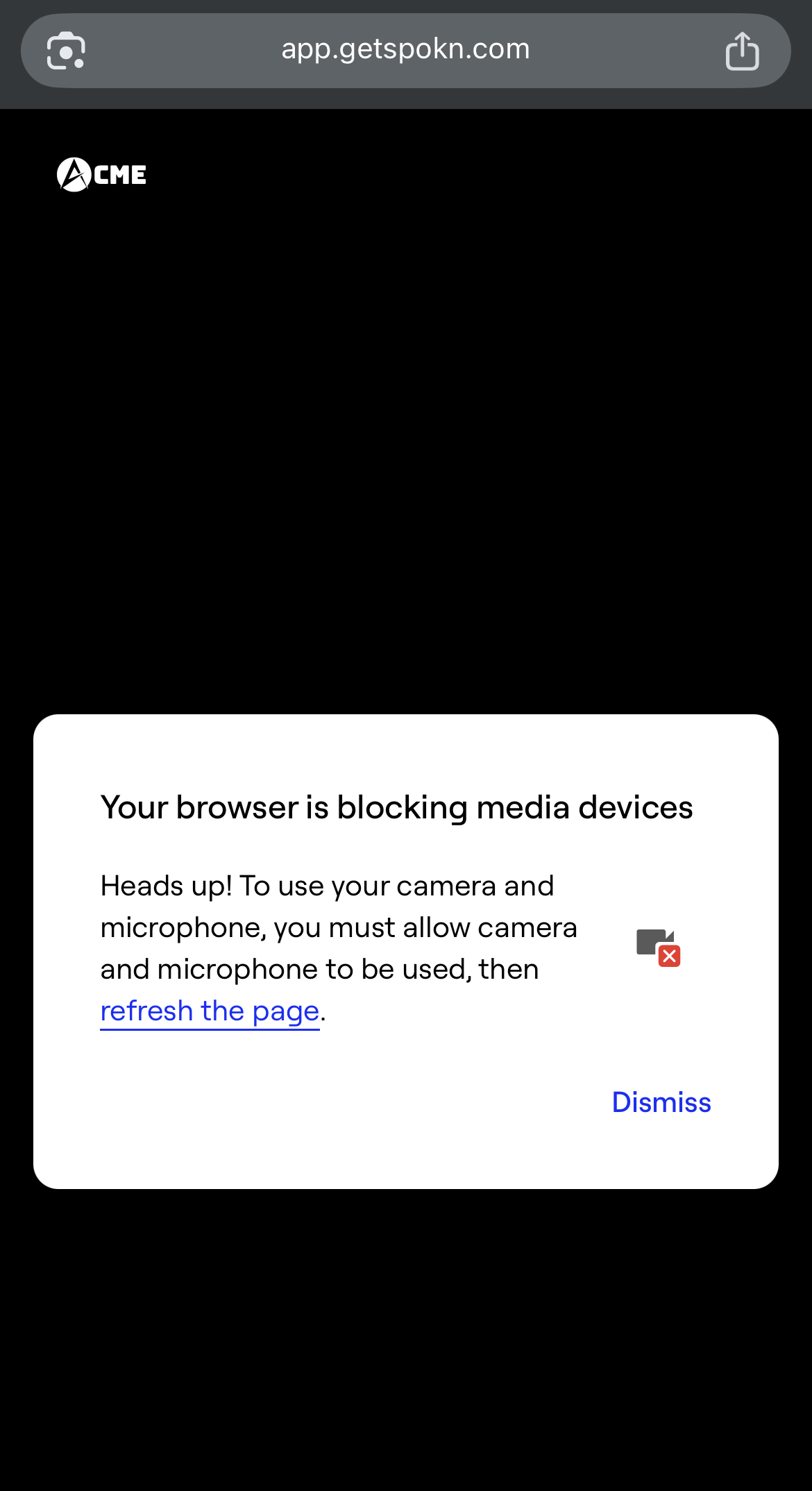
Note: If you see the following message, it means your browser doesn't have Camera and/or Microphone access, please enable them in your phone's setting first then refresh the page.
Was this article helpful?