
Recording a Vertical Video on Your Mobile
Last updated July 21, 2026
Vertical (selfie-style) recording is designed for quick, mobile-friendly clips. Follow the steps below to record and submit your video from your phone.
Before You Start
- For the best experience:
- iPhone: Use Safari
- Android: Use Google Chrome
- Make sure you are in a quiet, well-lit space.
- Hold your phone upright (portrait orientation).
Step 1: Open Your Recording Link
Tap the recording link or scan the QR code that was shared with you.
If you have questions at any point, tap the chat icon in the bottom right corner to connect with live support.
Step 2: Enter Your Email
Enter your email address to begin.

You do not need a password or confirmation code.
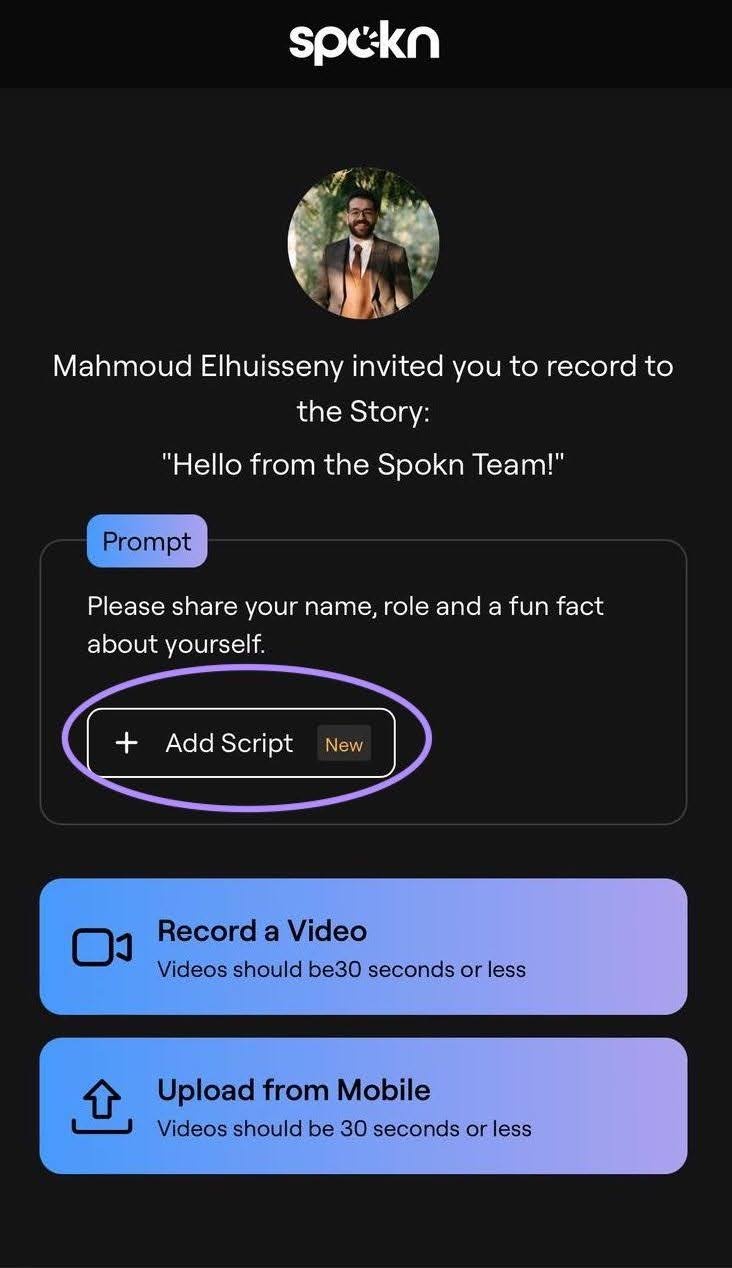
Step 3: Add a Script (Optional)
If you would like to use the teleprompter:
- Tap Add Script.
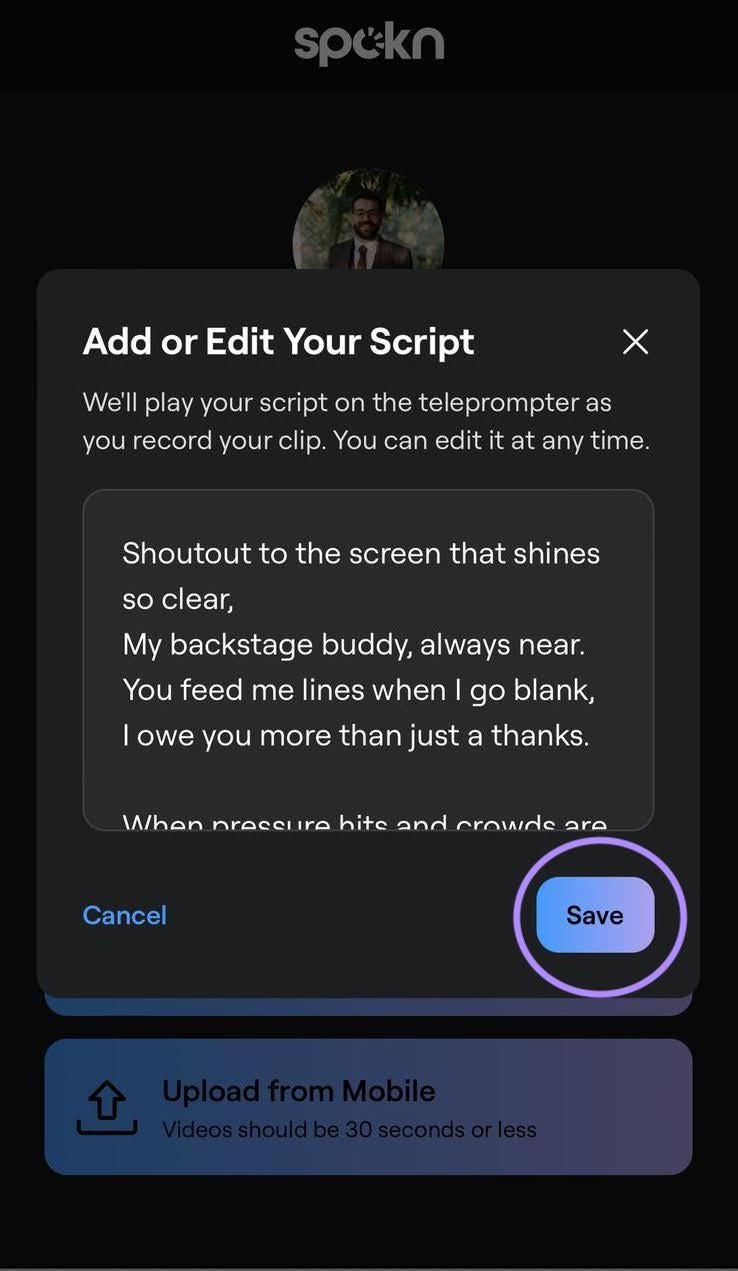
- Enter or paste your script.
- Tap Save when you’re finished.
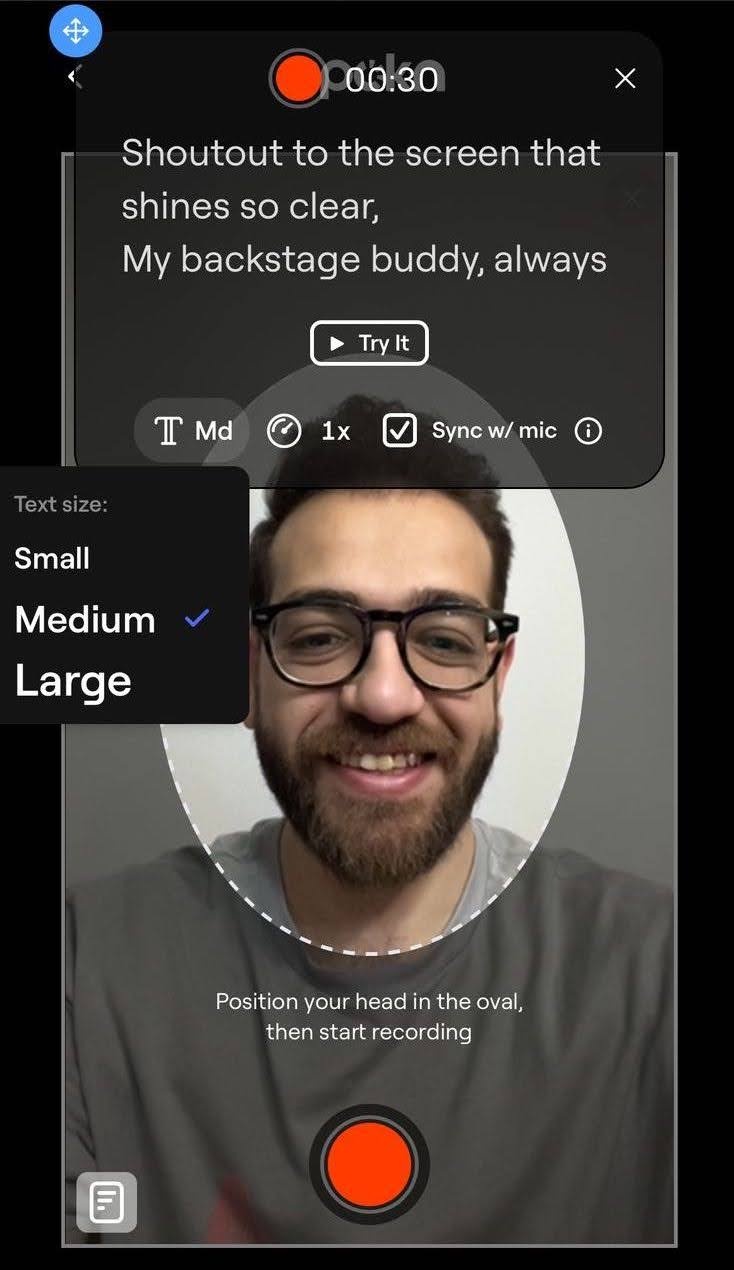
- Adjust the teleprompter settings:
- Text size
- Scroll speed
- Sync with your microphone (optional)
Using a script can help you stay on message and keep your recording concise.
Step 4: Allow Camera and Microphone Access
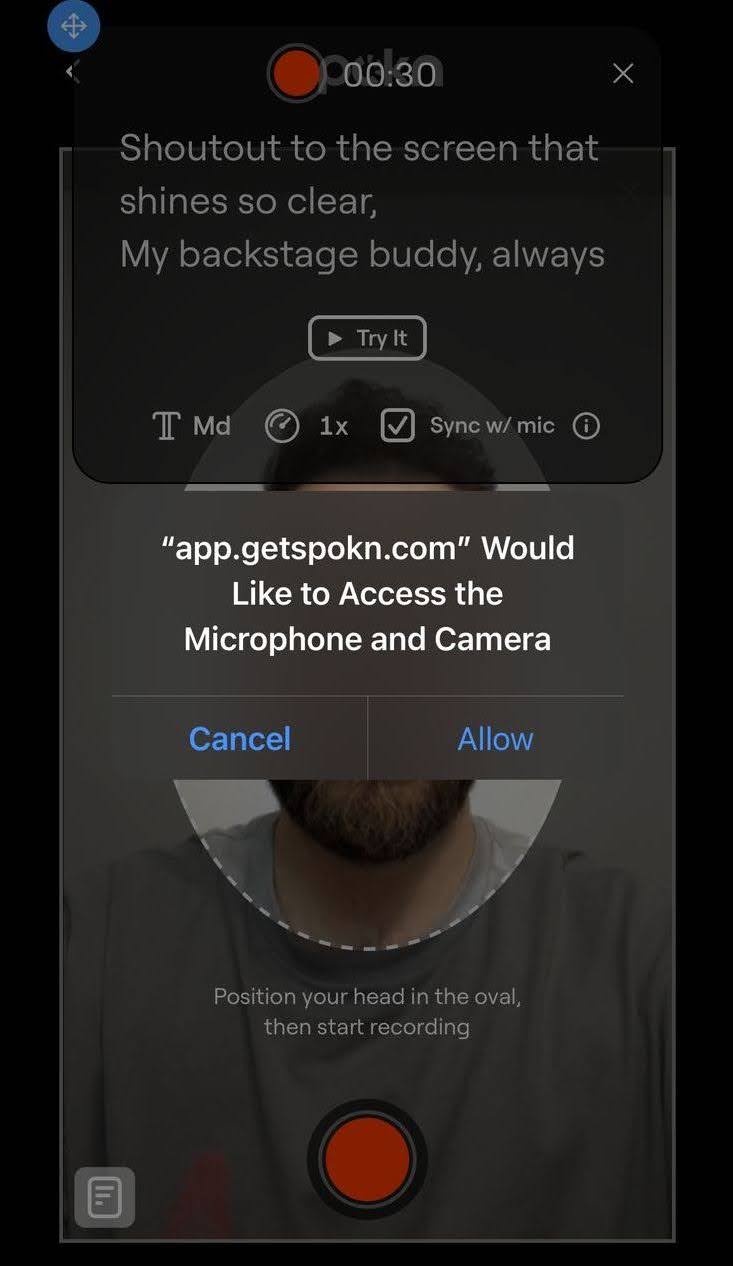
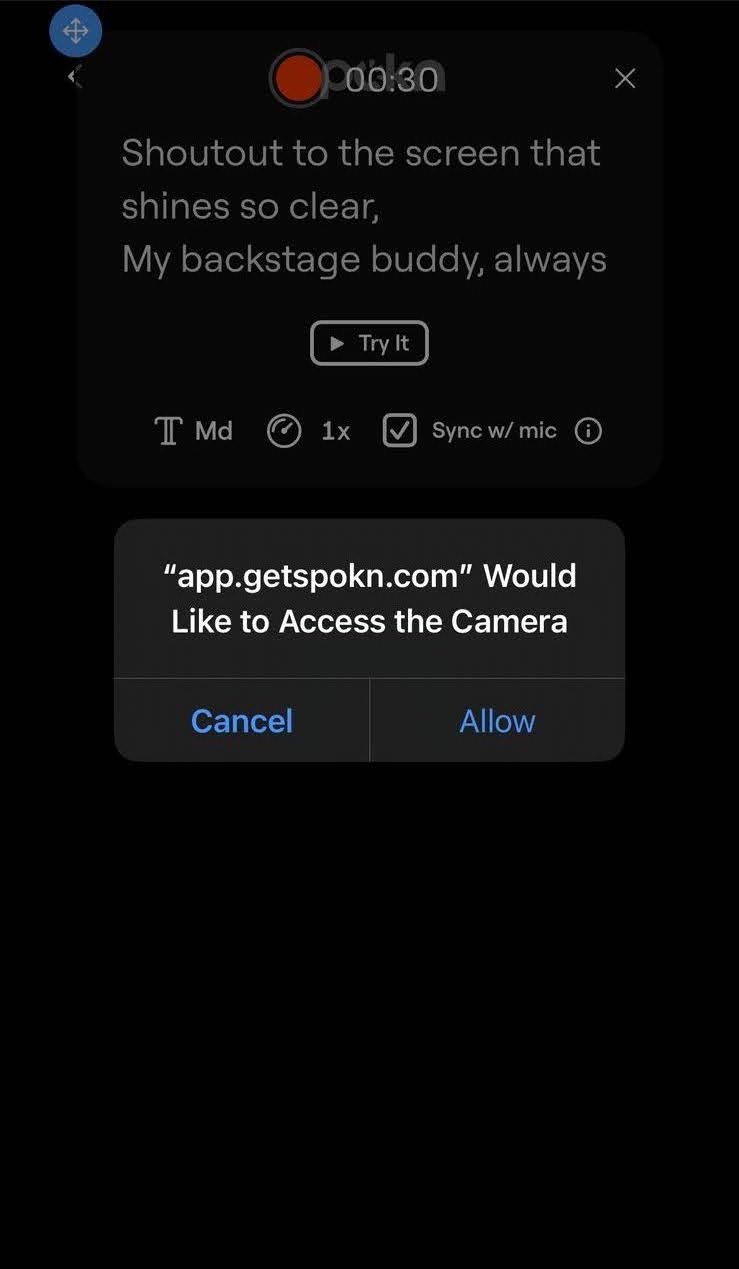
When prompted, allow Spokn to access your camera and microphone.
If you accidentally deny access:
- Refresh the page to trigger the permission pop-up again.
Step 5: Record Your Video
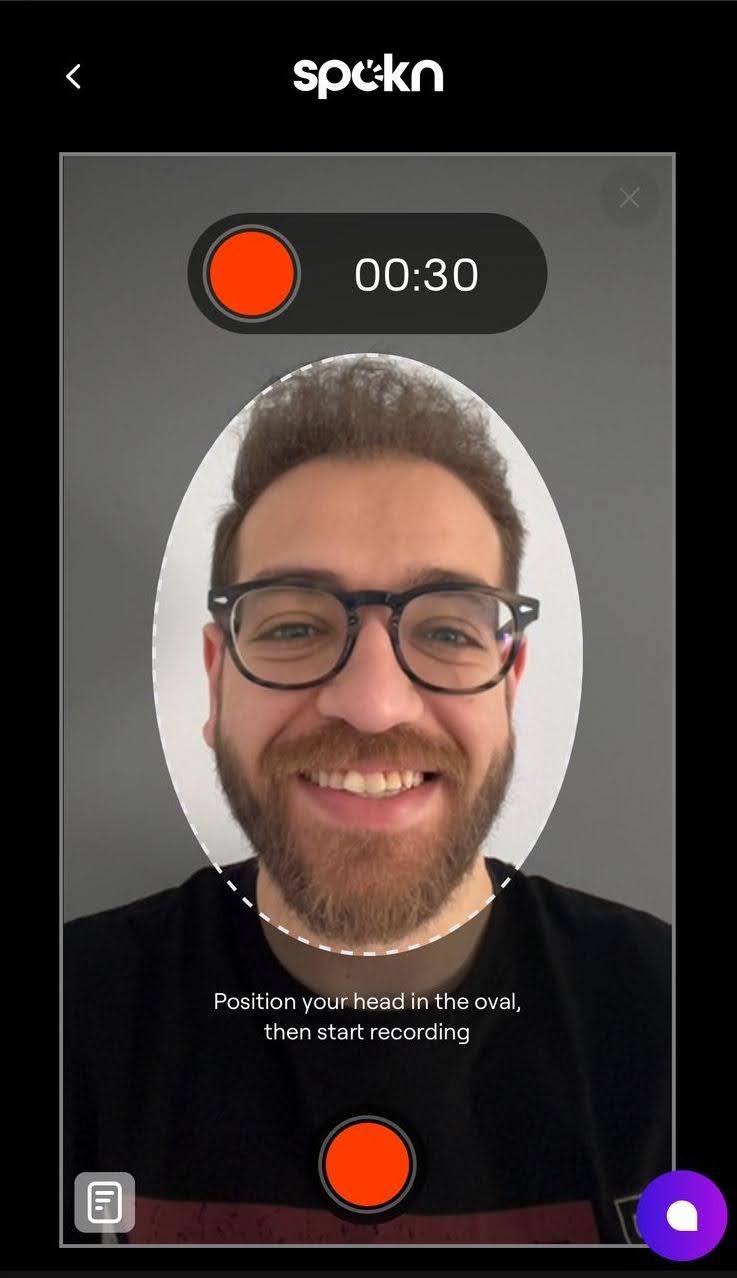
- Position your head inside the on-screen circle.
- Tap the red button to start recording.
- Tap it again to stop.
Take your time and speak naturally.
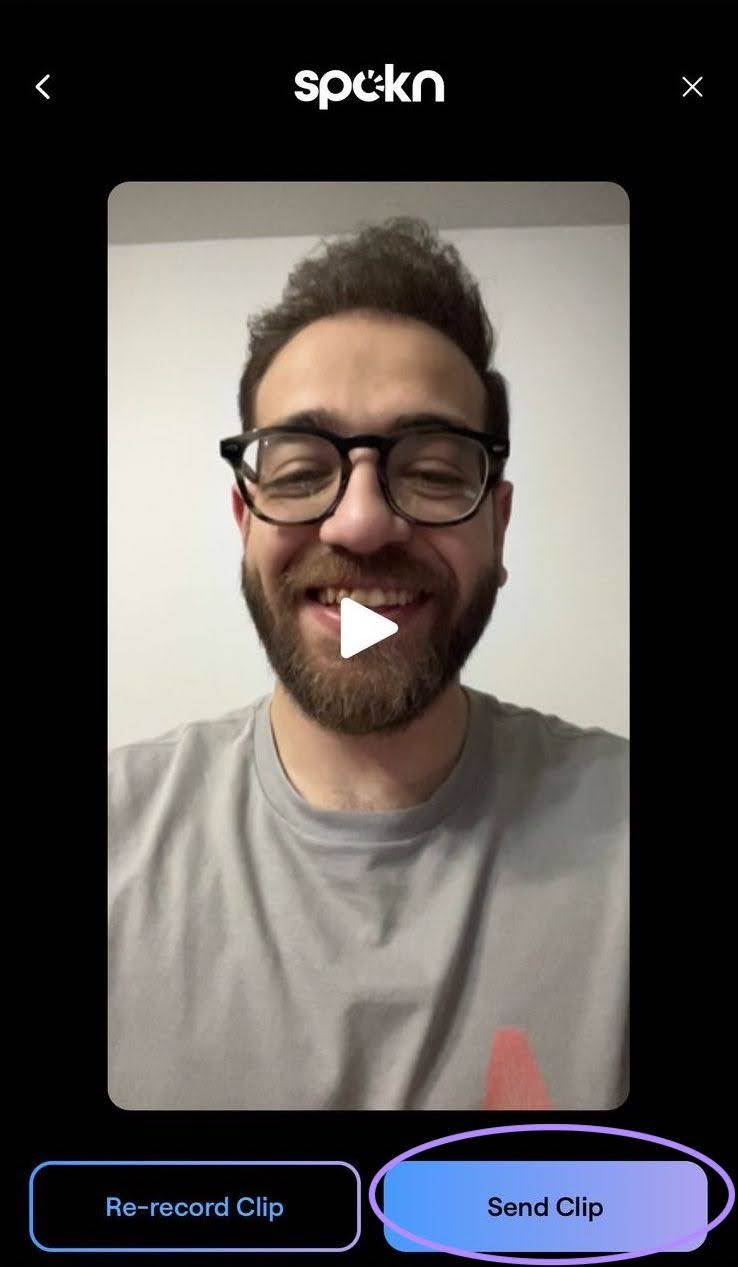
Step 6: Review Your Clip
After recording, review your video.
- Tap Re-record if you’d like to try again.
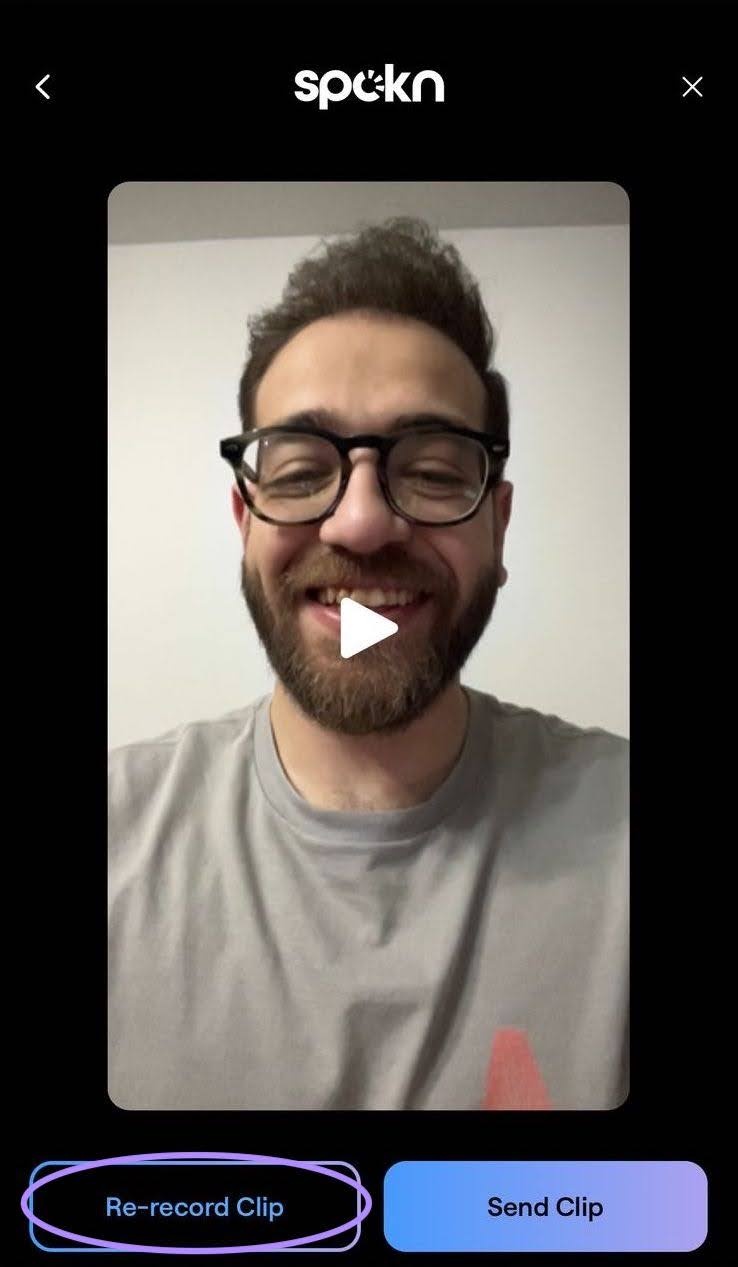
You can re-record as many times as you’d like.
Step 7: Send Your Clip
When you’re happy with your video, tap Send.
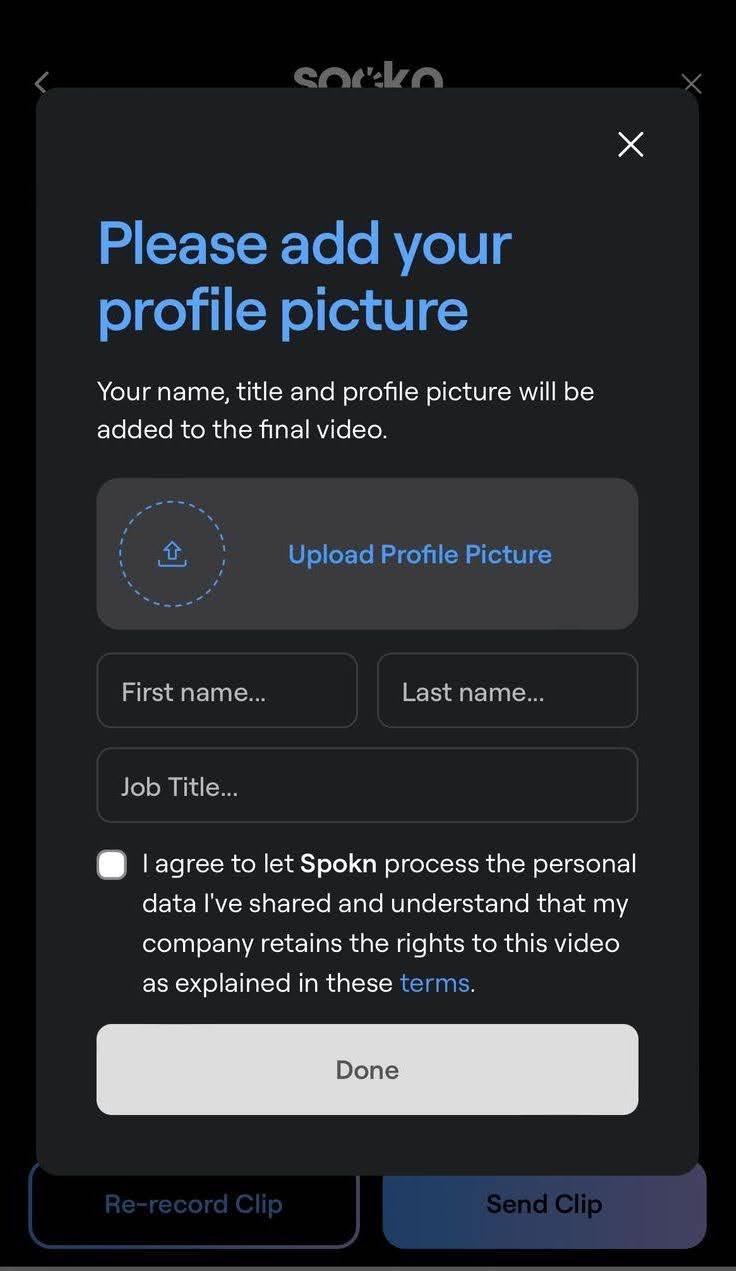
Step 8: Add Your Details
Enter:
- Your name
- Your title
- A profile picture (optional, but recommended)
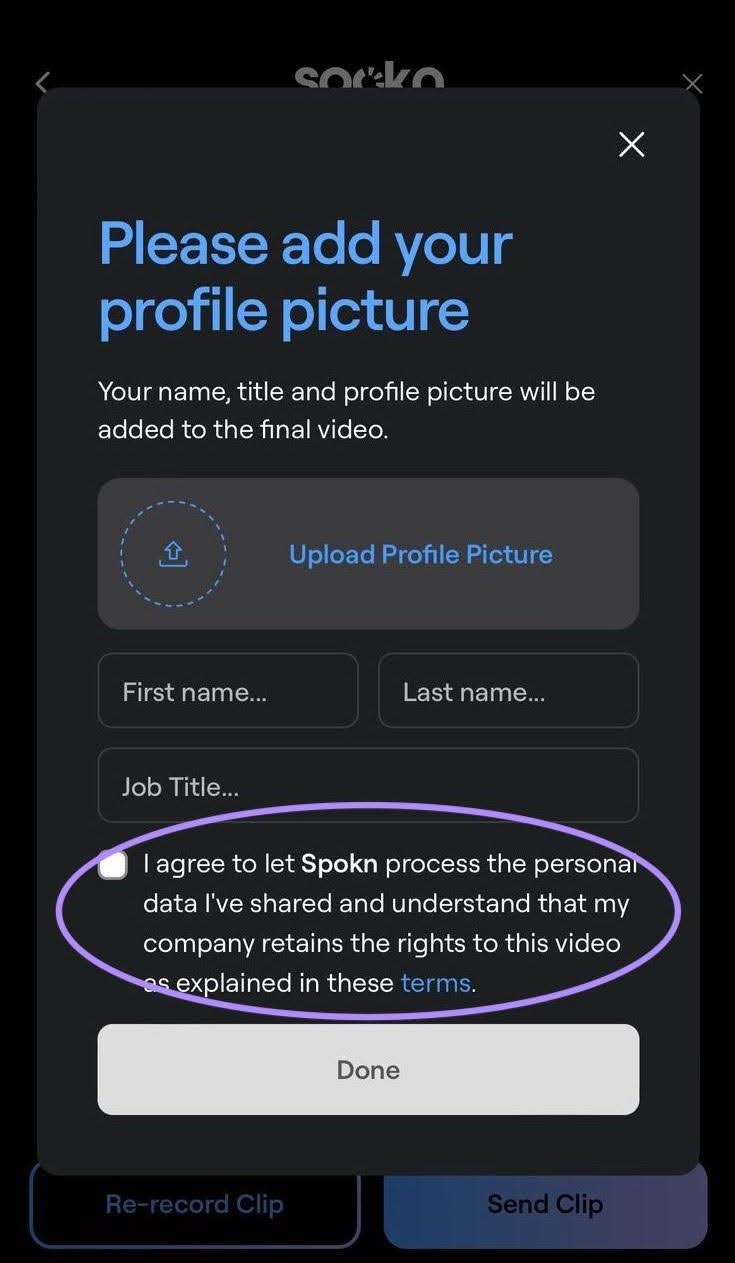
If prompted, check the permission box to allow your company to use the clip.
Step 9: Upload Confirmation
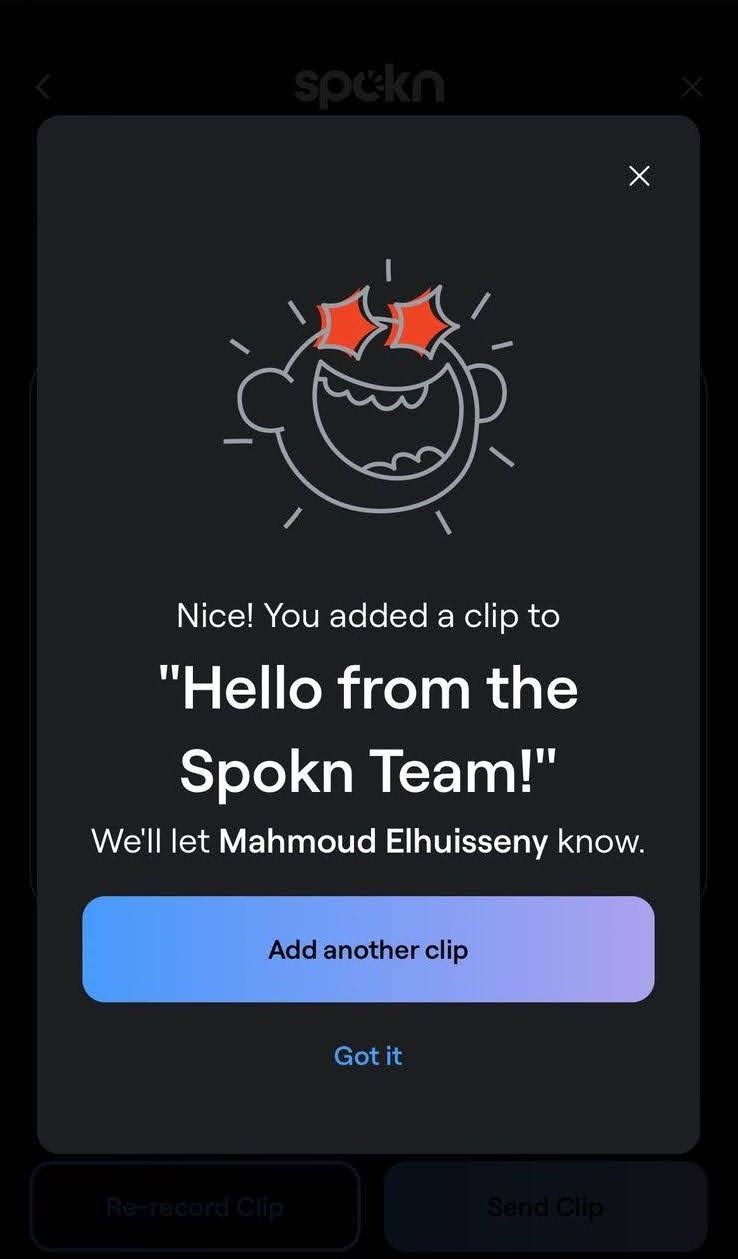
Your clip will upload automatically.
Depending on your network speed and video length, this may take a few minutes. You’ll see a success message once your clip has been added to the Story.