

How to Set Multiple Prompts in a Video Story
Last updated July 21, 2026
Overview
If you want contributors to respond to multiple questions in multiple clips, you can create a sequence of prompts.
With multiple prompts:
- Contributors record using a single link.
- They see multiple prompts to respond to.
- After submitting the first clip, Spokn guides them to record the next prompt.
This works well when you want contributors to answer multiple questions in detail.
Example:
Prompt 1: Introduce yourself, your title, and how long you've been at the company.
Prompt 2: Share one specific takeaway from the training program.
Prompt 3: Share one piece of advice for participants in the next cohort.
Each prompt is recorded as a separate clip. Contributors can answer all prompts in one session, or complete only some and return later to finish the rest.
Contributors are not required to respond to every prompt. If they only complete some of the prompts and leave the recording interface, Spokn will still save their recording files so you have access to any recording that was completed.
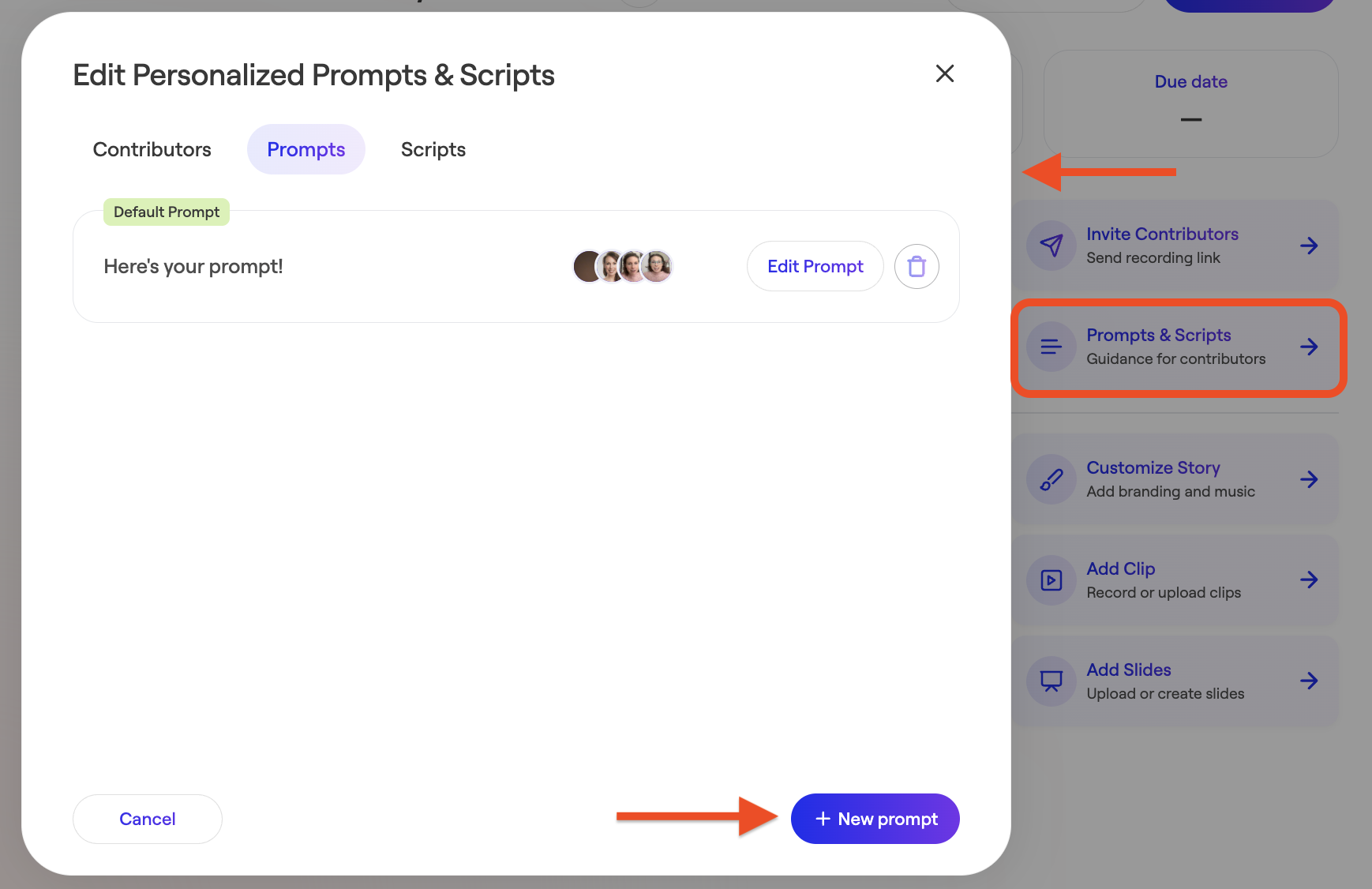
Step 1: Enter Prompts & Scripts view
- Select Prompts & Scripts in the right-hand navigation.
- Click Prompts in the top navigation.
- Click New Prompt in the bottom right corner.
Step 2: Add an Additional Prompt(s)
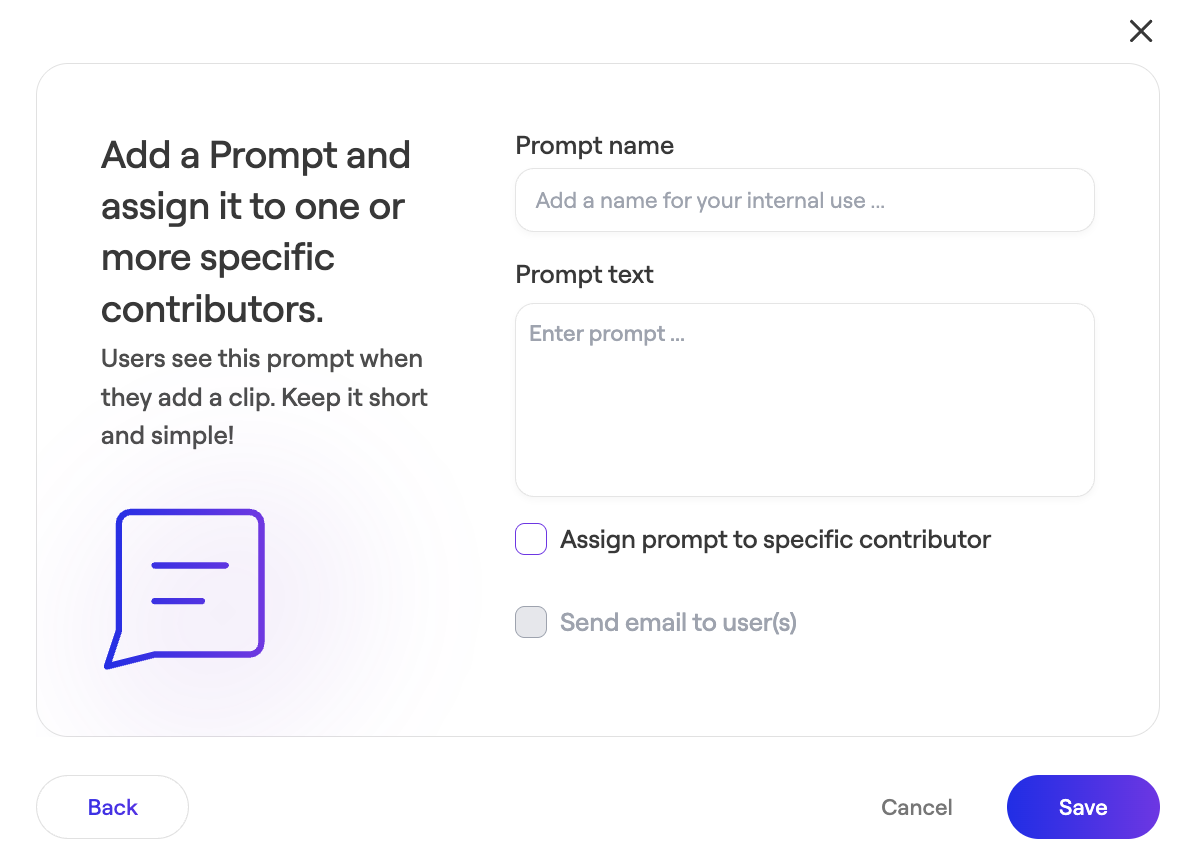
- Add a prompt name (internal use only).
- Write the prompt text.
- Assign the prompt to a specific email address if you want it to appear only for specific contributors. Do not assign the prompt to a specific contributor if you want anyone who clicks the recording link to see the prompt.
- Confirm and save.
Important:
If you choose to assign the prompt to a specific contributor, make sure the email address is correct entered each time. If the email is incorrect or inconsistent, the user will not see the intended prompt.
Step 3: Repeat Step Two for Additional Prompts
Add additional prompts to your sequence by following the guidance in Step 2.