

How to Set Scripts for Contributors
Last updated July 21, 2026
Overview
Spokn offers a telelprompter to contributors. You can pre-populate a contributor's teleprompter with a script or talking points using these steps.
In the recording experience, contributors are able to edit any script assigned to them to match their tone and voice.
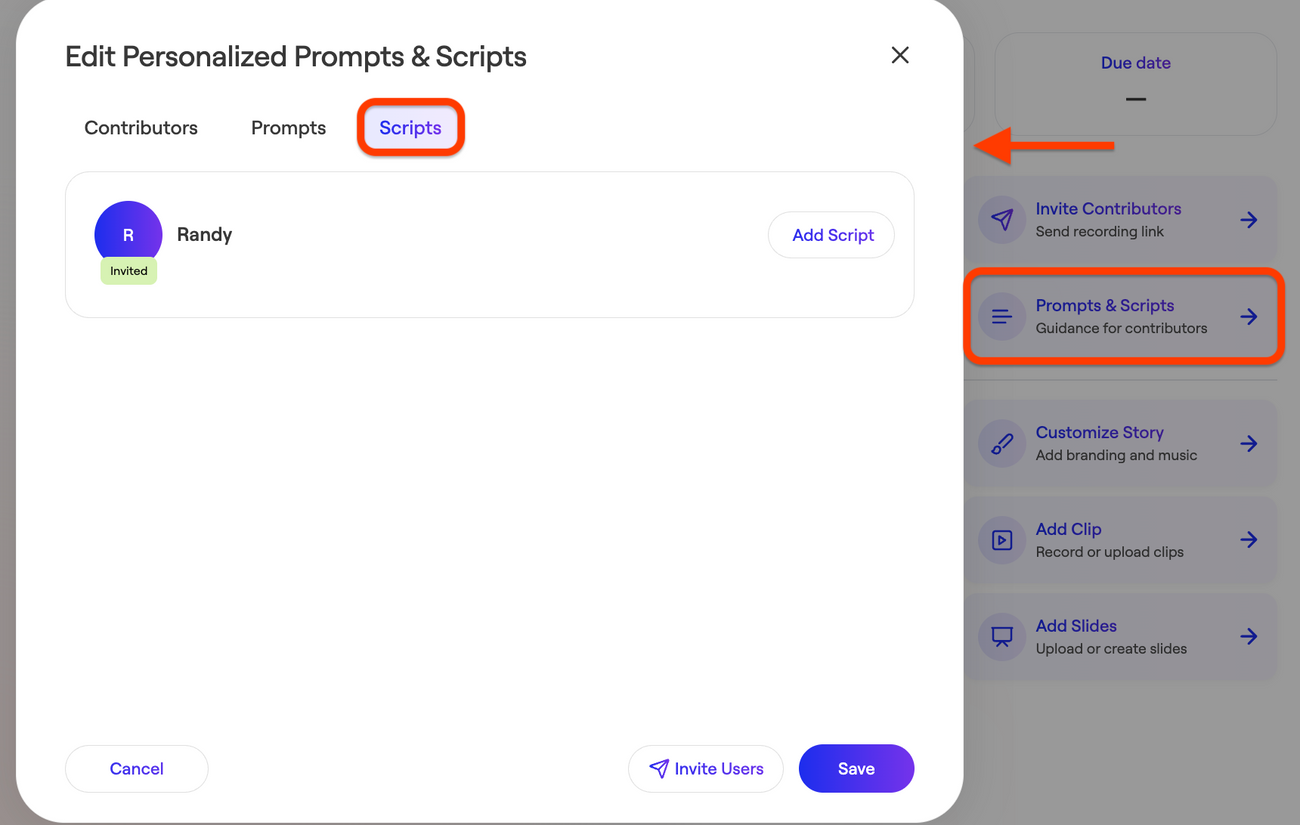
Step 1: Open Scripts
- Open your Video Story.
- Select Prompts and Scripts in the right-hand navigation.
- Choose Scripts in the top navigation.
Step 2: Add a Script
Spokn display a scpecific script to a specific user by assiciating the script to the email address they will use to recordi. To add a script for a contributor:
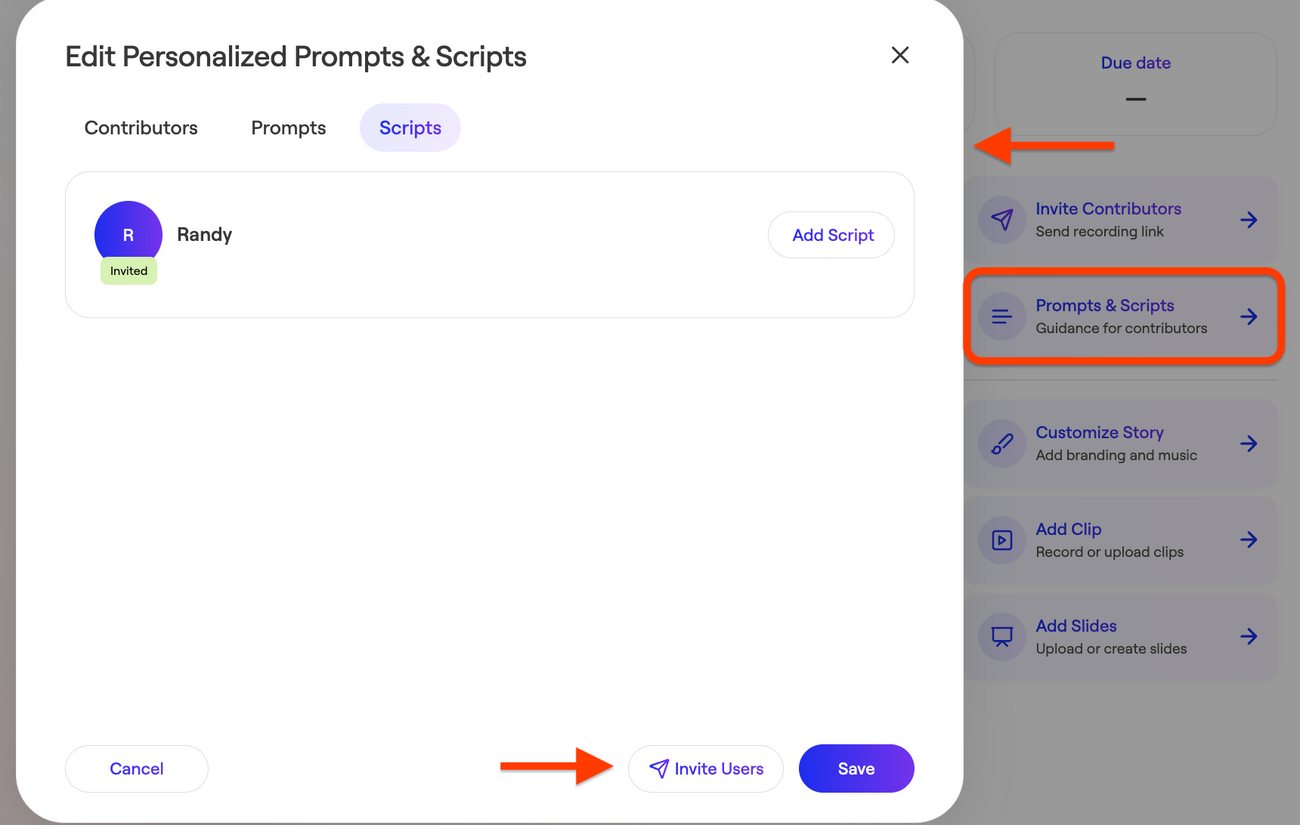
- Open Prompts & Scripts in the right-hand navigation
- Click Scripts in the top navigation
- Click Invite Users in the bottom right corner.
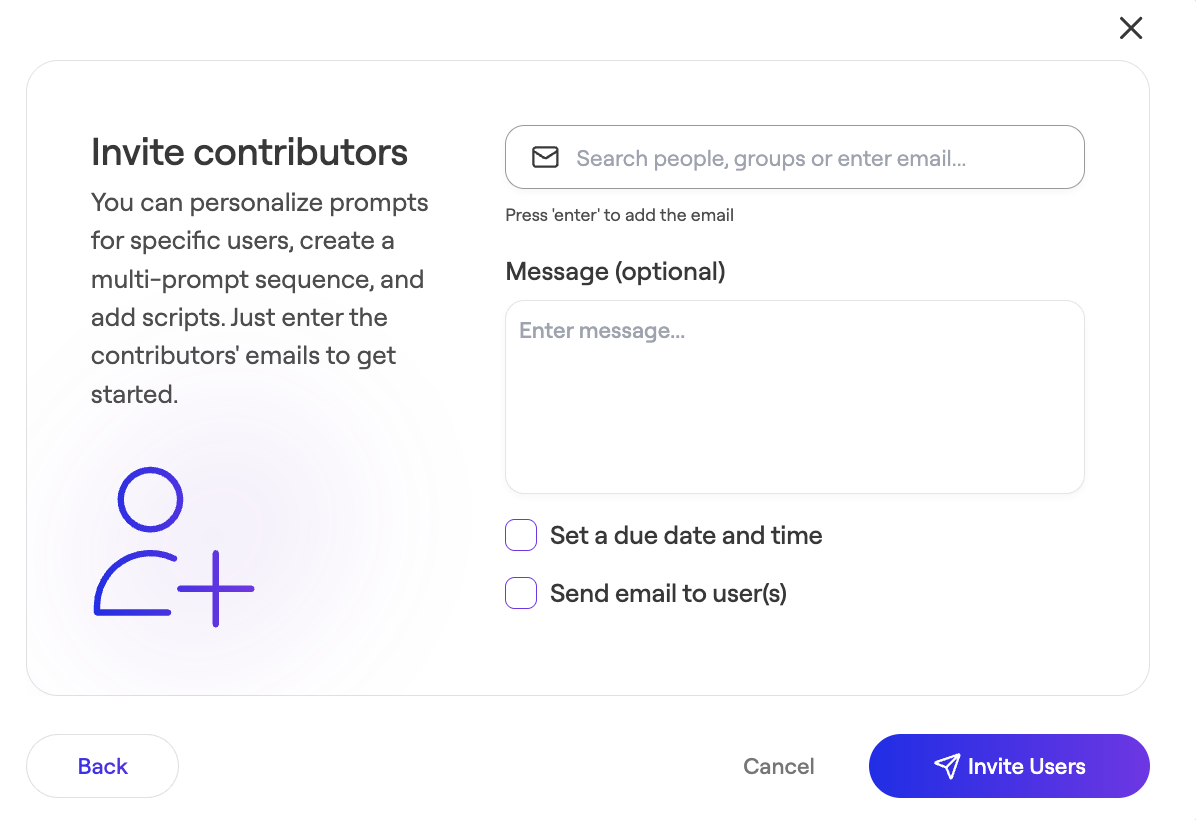
- Enter their email address.
- Click Invite Users.
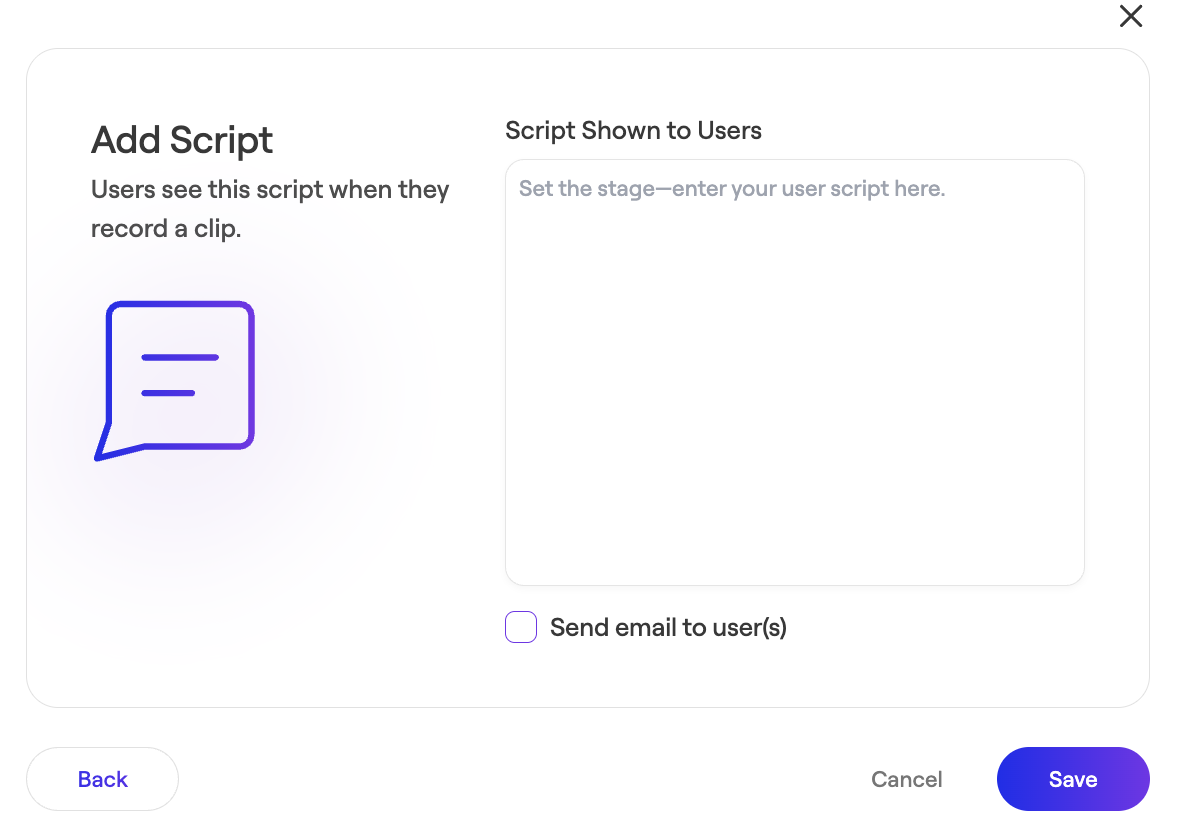
- Click Add Script for the contributor in question.
- Enter the text contributors should read.
- Save.
If a contributor is already listed (for example, if you've already assigned them a personalized prompt), simply click their name in the contributor list and follow steps 6-8 above.
Understanding the Contributor's Experience
- Contributors can edit the script to match their tone of voice.
- The script scrolls for easier reading. Contributors can adjust its size and speed.
- Contributors can also choose to sync the teleprompter to scroll automatically as you speak, and pause when they pause. If using this feature, remove any line breaks from your script before recording to ensure the teleprompter continues to advance properly.
Was this article helpful?