

Set Up a Video Story in Spokn
Last updated July 21, 2026
Overview
A video story is a collection of clips from one or more people that are stitched together into a single video along with branding, captions, and music. You can make a story in minutes on Spokn without any video editing experience.
This guide walks through how to:
- Create a new story
- Add a title and
- Set a time limit for contributors
- Set the format (portrait or landscape)
- Craft a prompt for contributors to respond to
- Share you recording link
Step 1: Start a New Story
- Log in to Spokn.
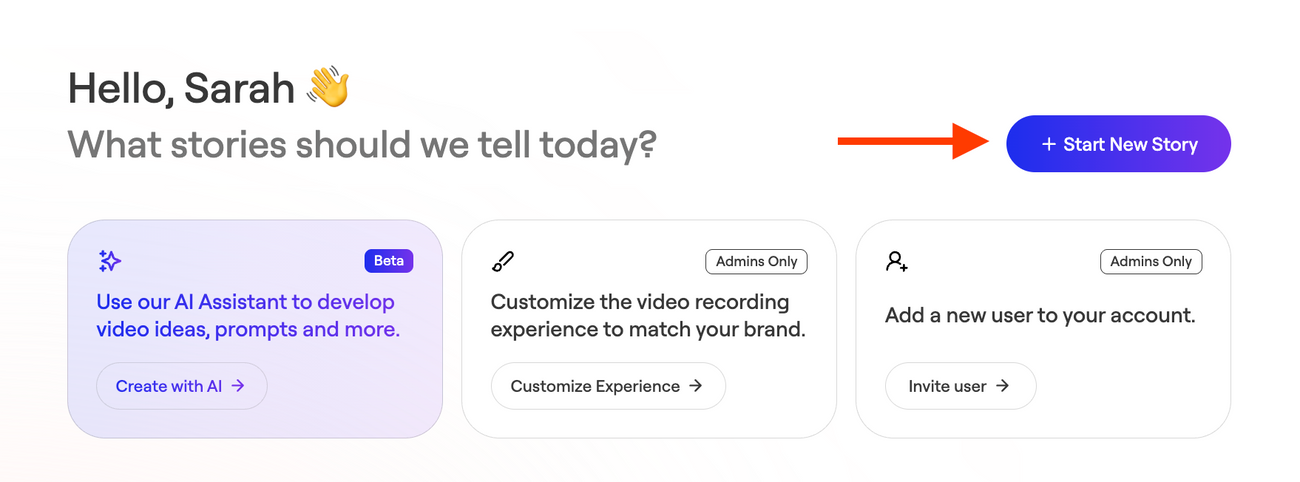
- From your dashboard, click Start Story.
Step 2: Add Name and Description
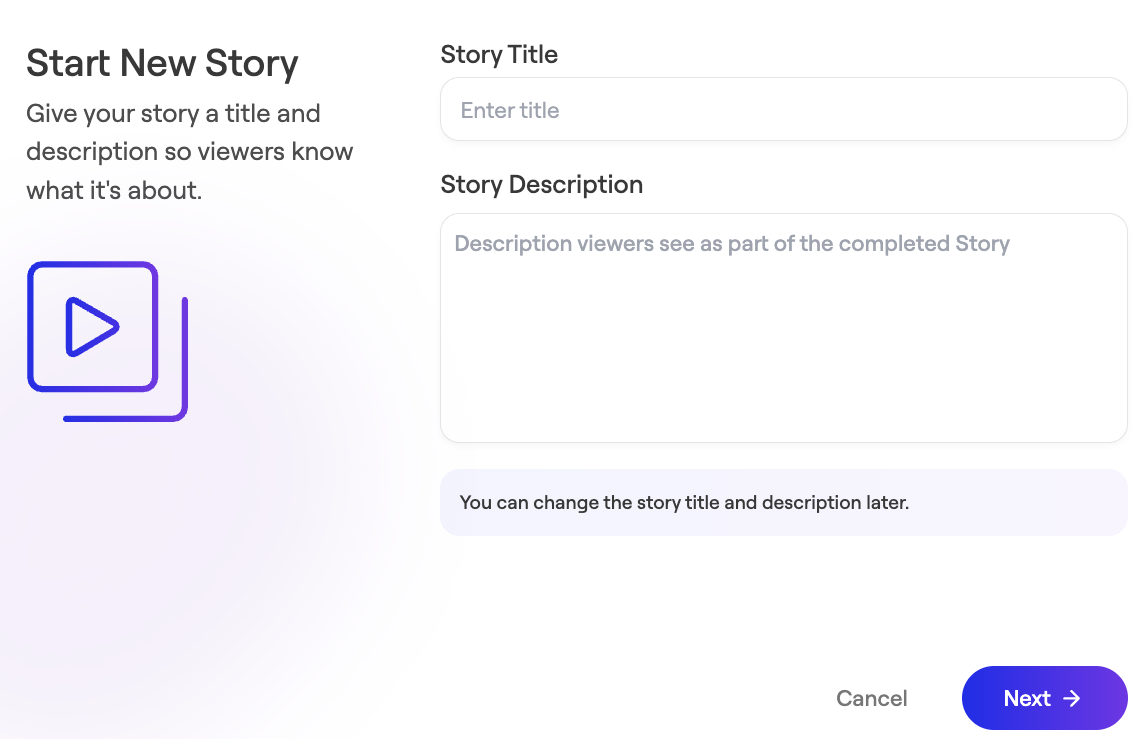
Enter Story Title and Story Description.
This will be visible in the final version of your video. You can always edit it later.
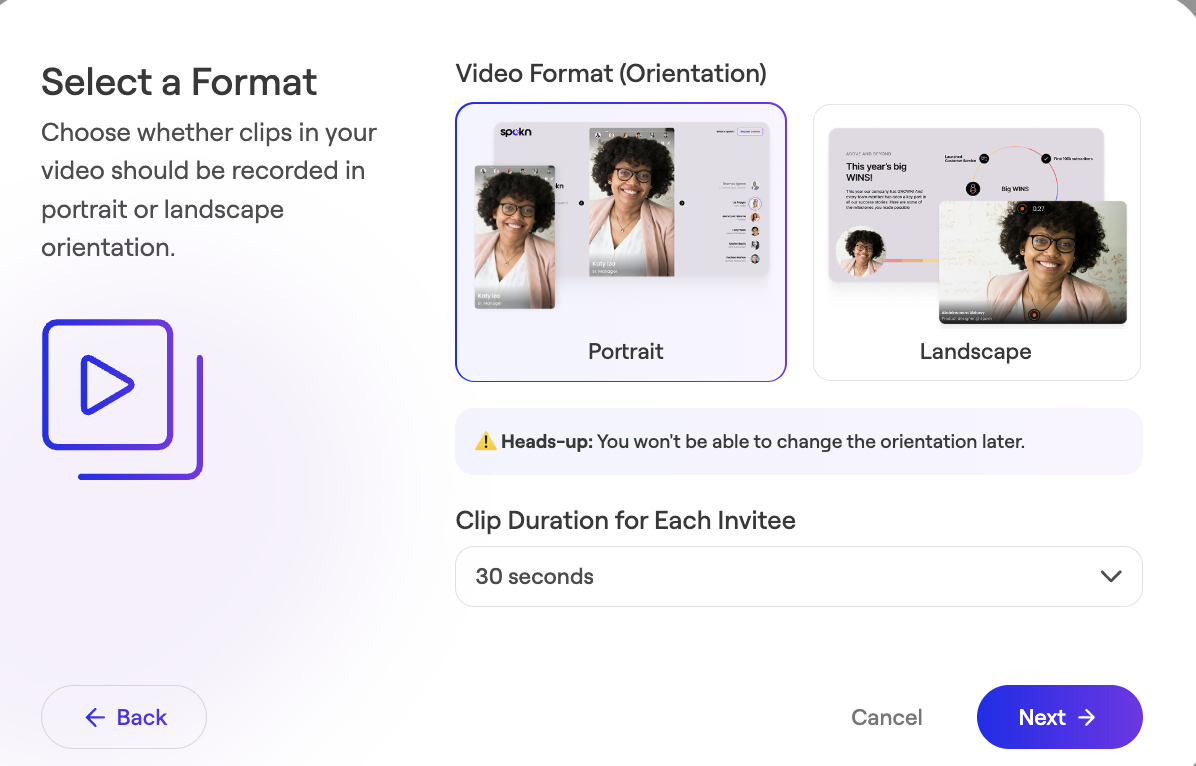
Step 3: Choose Video Format (Orientation)
- Portrait (9:16) — ideal for capturing attention, storytelling, conveying authenticity and building trust
- Landscape (16:9) — ideal for screen-share presentations and software tutorials
Step 4: Set a Time Limit
Set a maximum clip length. This is the longest a contributor can record in a single clip.
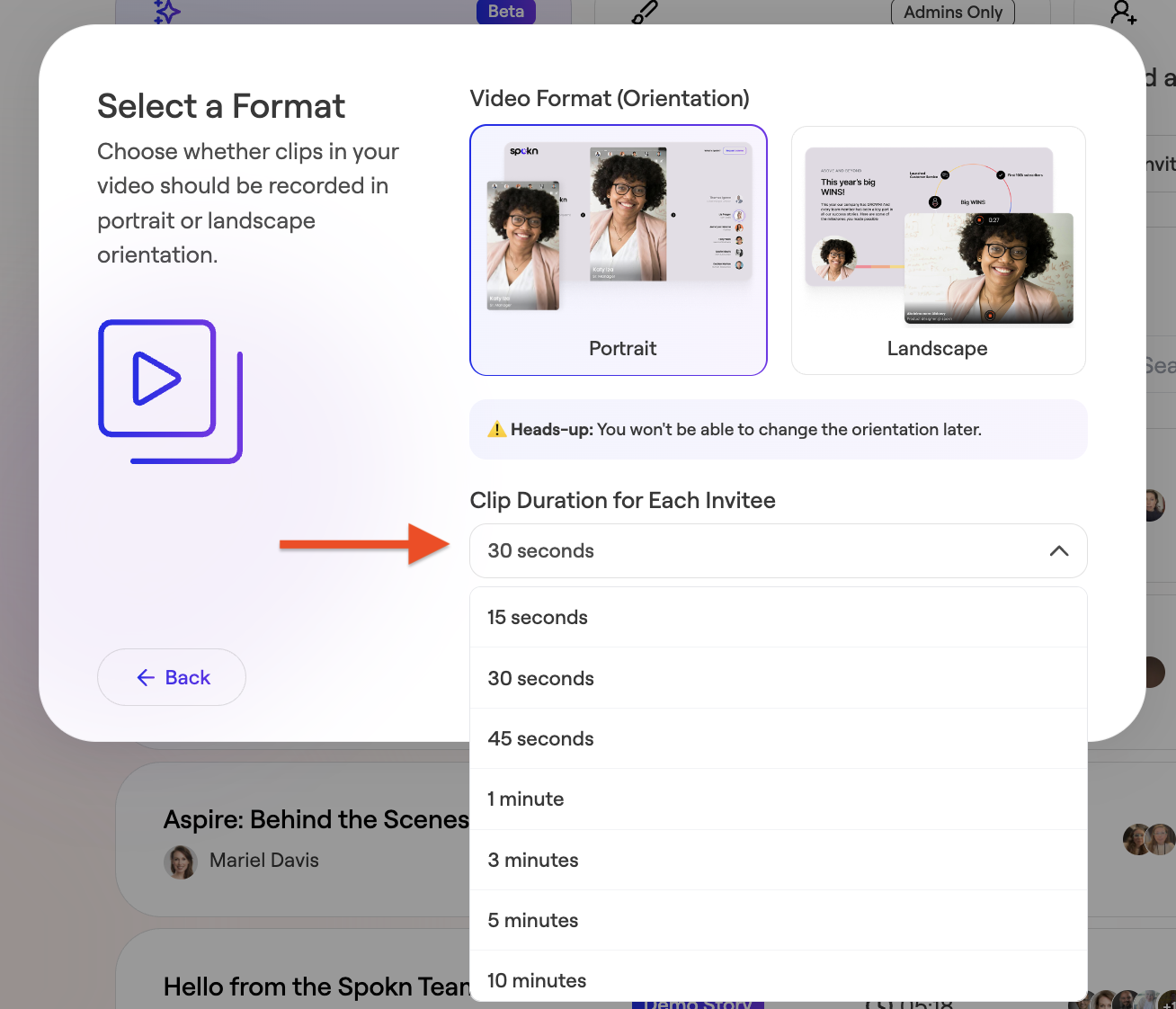
There’s no limit to how many clips a contributor can record, or how many clips can be included in a final video.
- 30 seconds is the recommended length for most vertical videos
- split longer messages into multiple 30-second clips
- screen-share videos typically benefit from 1+ minute time limits
💡 Tip: Shorter time limits:
- Increase viewer completion rates
- Increase contributors' willingness to record
- Encourage contributors to re-record for the best quality delivery
Step 5: Write the Recording Prompt
Your prompt is a set of instructions that guides contributors on what to say.
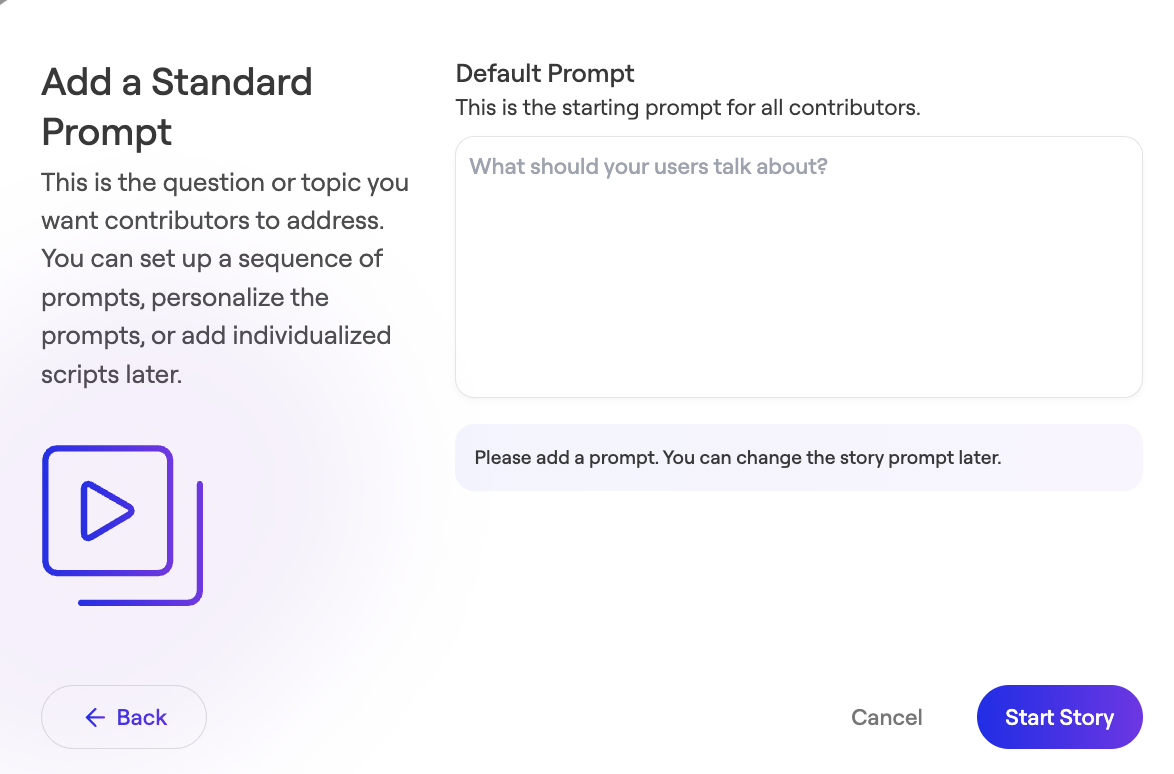
💡 Tips:
- Make questions very specific
- Keep instructions short
- Consider adding guidance on wording (e.g. "Start your clip with: "My favorite...")
Example:
Instead of:
"Share your experience in the mentoring program, what you got out of it, and anything else you’d like to add."
Use:
"What is one specific way that the mentoring program benefitted you? Start your clip with: “One thing I got out of the mentoring program is…”
Step 7: Share the Recording Link
- Copy the recording link.
- Share along with a personalized message via Slack, Teams, email, or your intranet.
- You can also use Spokn to send recording invitation emails
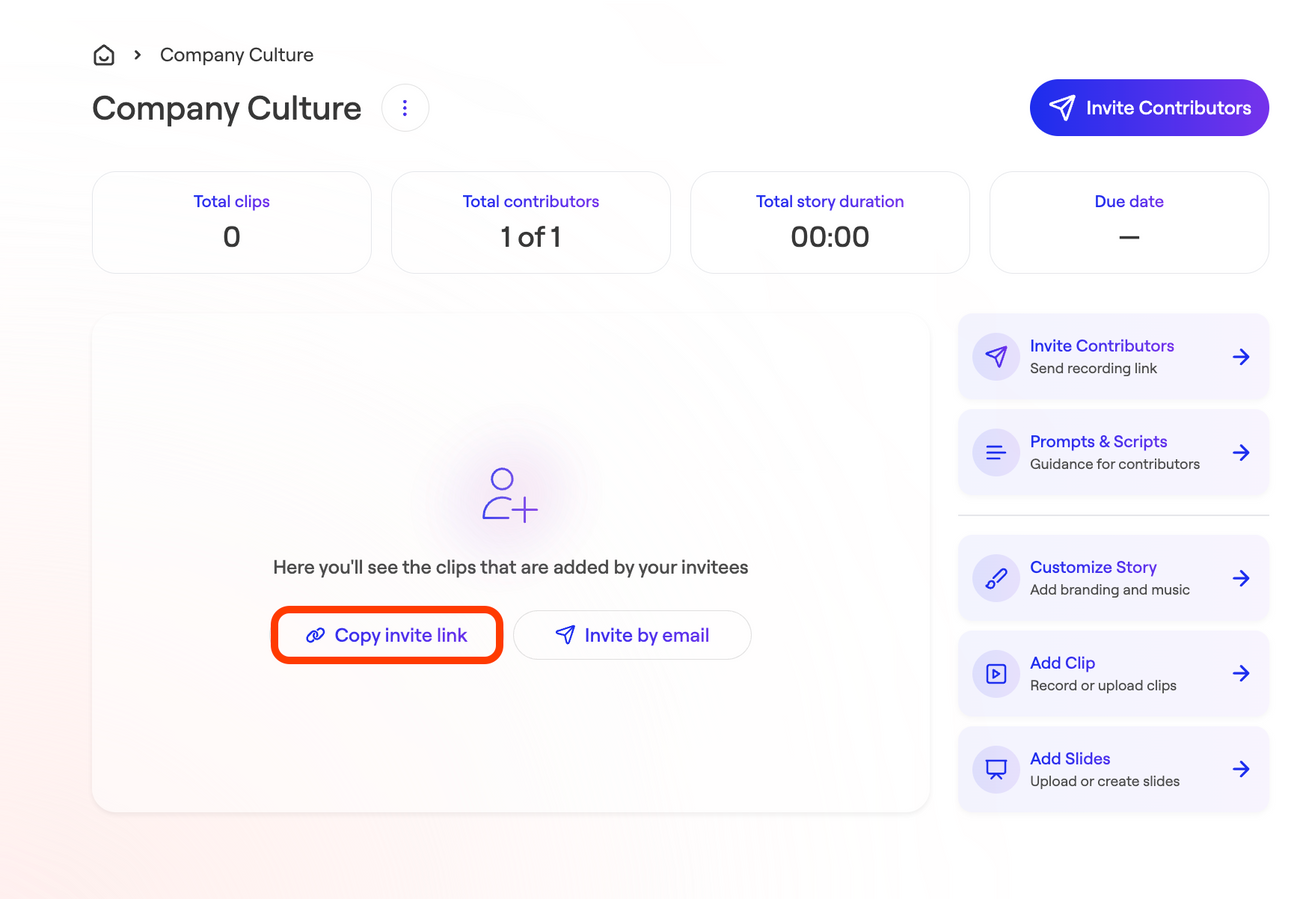
Contributors do not need to download an app or log into Spokn to record.