

How to Personalize Prompts for Specific Contributors
Last updated July 21, 2026
Personalizing prompts enables you to assign one or more prompts to a specific contributor, versus having all contributors respond to the same prompt(s).
Overview
In Spokn, prompts guide contributors on what to say when recording. You can:
- Create a general prompt that everyone sees
- Assign specific prompts to specific people
- Create a sequence of multiple prompts (here)
Start with a Clear Default Prompt
Every video story includes a default prompt. This is what contributors see if they haven't been assigned a personalized prompt.
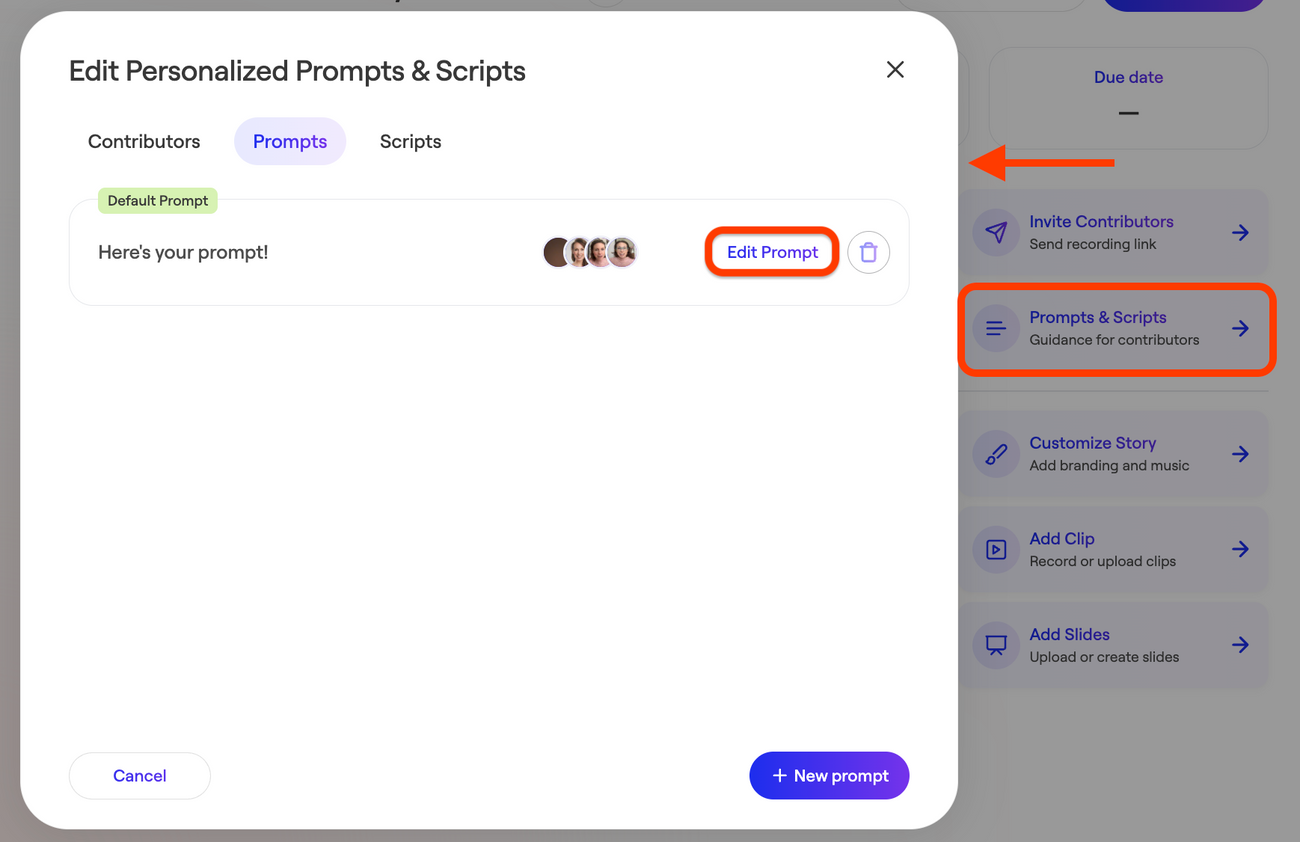
To edit your default prompt:
- Open your Video Story.
- Go to Prompts and Scripts.
- Select Prompts.
- Update the default prompt text.
💡 Tips:
- Make questions very specific
- Keep instructions short
- Consider adding guidance on wording (e.g. "Start your clip with: "My favorite...")
Example:
Instead of:
"Share your experience in the mentoring program, what you got out of it, and anything else you’d like to add."
Use:
"What is one specific way that the mentoring program benefitted you? Start your clip with: “One thing I got out of the mentoring program is…”
Personalize Prompts for Specific Individuals
If you want different people to respond to different prompts, you can assign them personalized prompts. As an example of where this is useful: if you want five members of your leadership team to each describe a different company value.
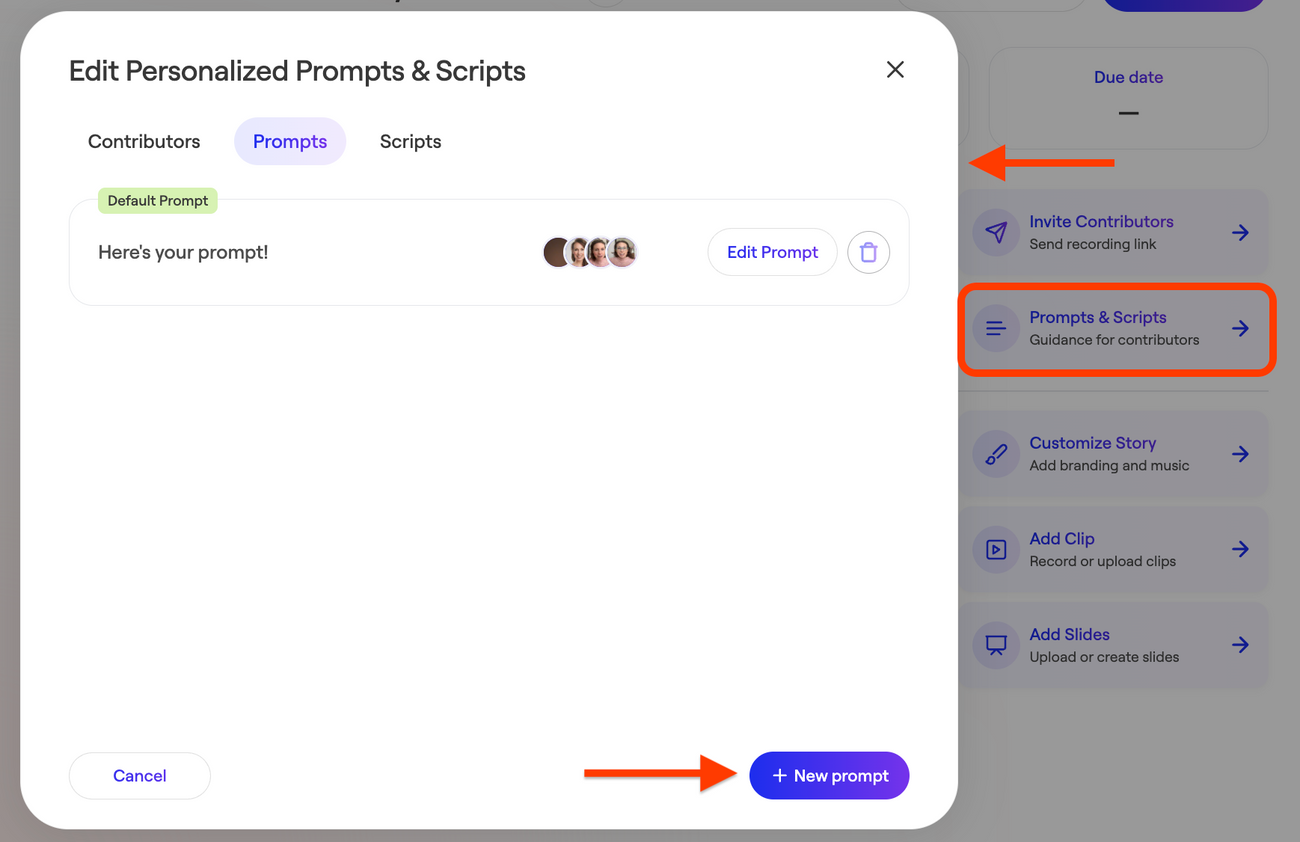
To assign a personalized prompt:
- Open the Video Story.
- Select Prompts & Scripts.
- Click Prompts.
- Click New Prompt.
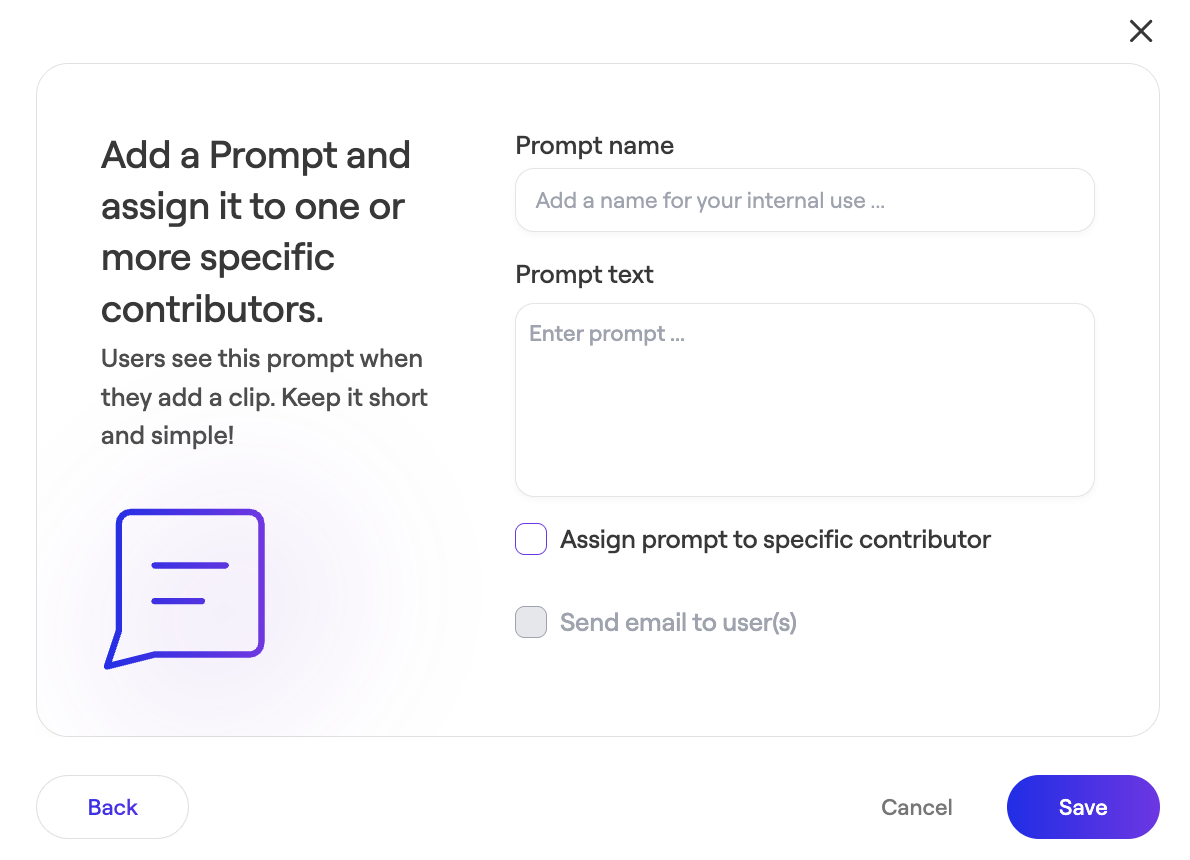
- Add a prompt name (internal use only).
- Write the prompt text.
- Assign the prompt to a specific email address.
- Confirm and save.
Important:
Personalized prompts are associated with the email address of the contributor. Make sure the email address is entered exactly the same each time. If the email is incorrect or inconsistent, the contributor may not see the intended prompt.
When that contributor opens the recording link and enters their email, they will see the personalized prompts assigned to them.
Use Multiple Prompts to Collect Structured Clips
If you want contributors to record more than one clip, you can create a sequence of multiple prompts in a row.
With multiple prompts:
- Contributors record using a single link.
- They see multiple prompts to respond to.
- After submitting the first clip, Spokn guides them to record the next prompt.
This works well when you want contributors to answer multiple questions in detail.
Example:
Prompt 1: Introduce yourself, your title, and how long you've been at the company.
Prompt 2: Share one specific takeaway from the training program.
Prompt 3: Share one piece of advice for participants in the next cohort.
Each prompt is recorded as a separate clip. Contributors can answer all prompts in one session, or complete only some and return later to finish the rest.
Contributors are not required to respond to every prompt. If they only complete some of the prompts and leave the recording interface, Spokn will still save their recording files so you have access to any recording that was completed.