

How to Manage User Roles
Last updated July 21, 2026
Managing user roles ensures the right people have the right level of access within your Spokn workspace. This guide walks you through how to assign and update roles for users in your account.
Overview
Spokn uses role-based permissions to control what users can see and do within your workspace. Assigning the correct role helps:
- Maintain security and compliance
- Streamline workflows
- Prevent accidental changes to critical content
- Ensure teams have appropriate publishing access
How to Assign a Role to a New User
1. Navigate to Enterprise Tools 2. Select Users 3. Click Add Users
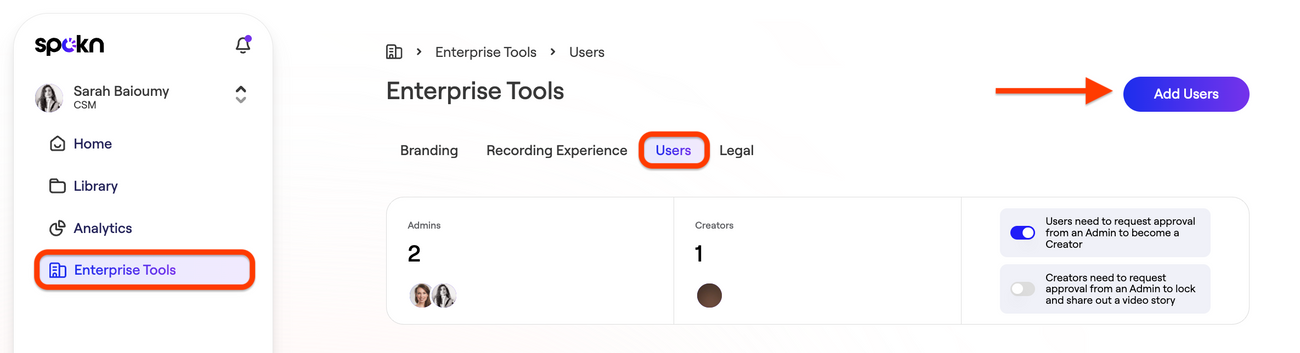
4. Enter the user’s details 5. Select the appropriate Role 6. Click Add New User
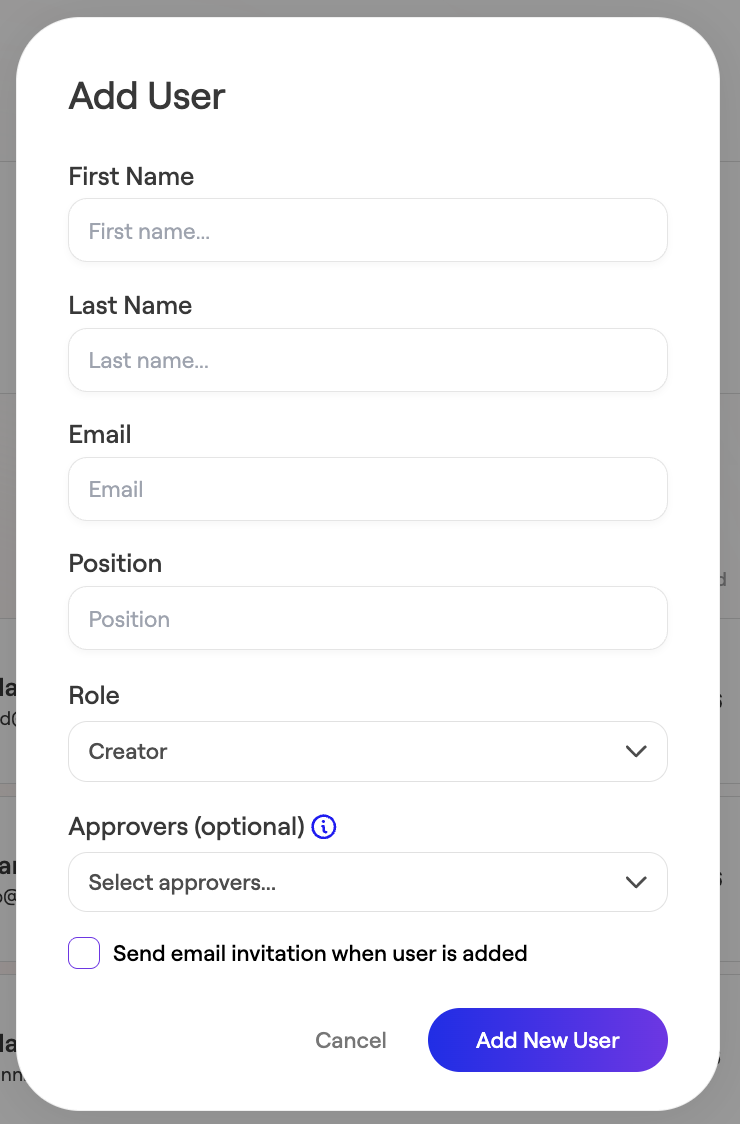
How to Change an Existing User’s Role
1. Go to Enterprise Tools 2. Click Users
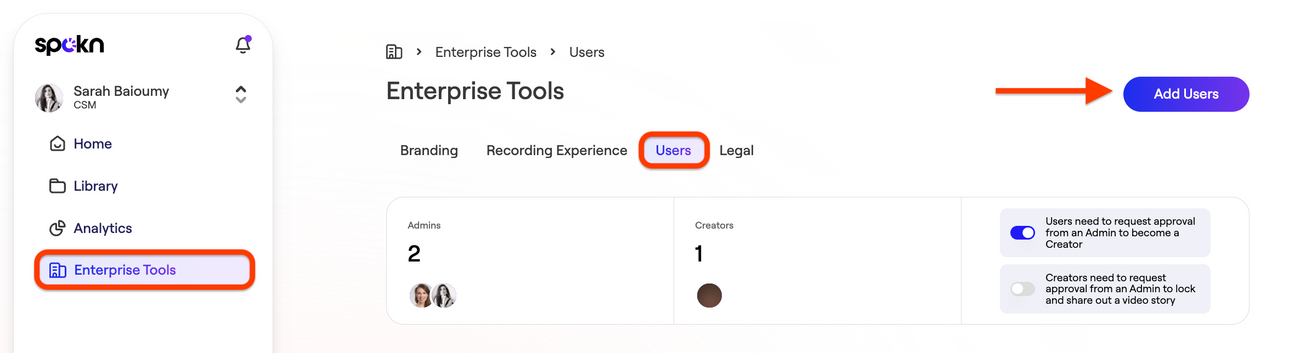
3. Find the user in the list 4. Click the Role dropdown next to their name 5. Select the new role
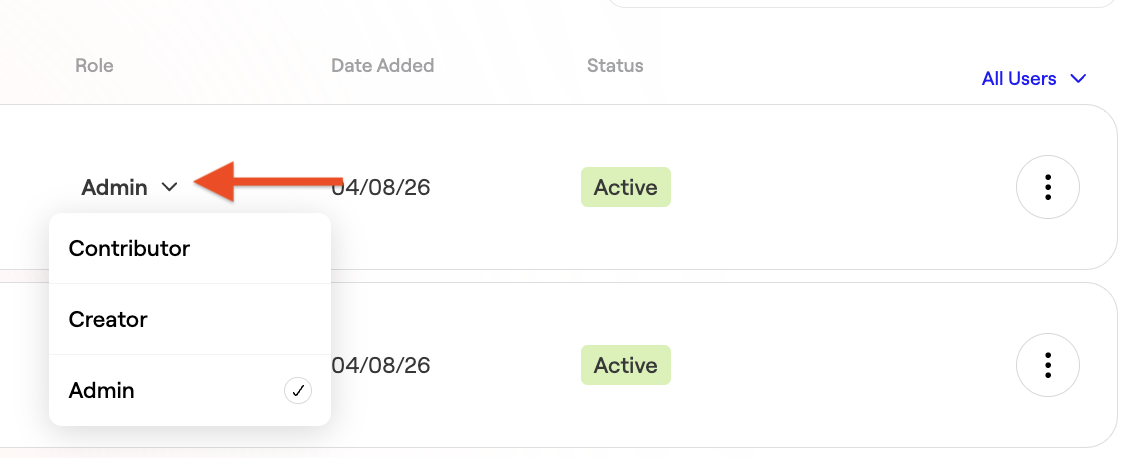
Changes take effect immediately.
Removing a User
1. Navigate to → Users 2. Locate the user 3. Click the three-dot menu 4. Select Remove User 5. Confirm removal
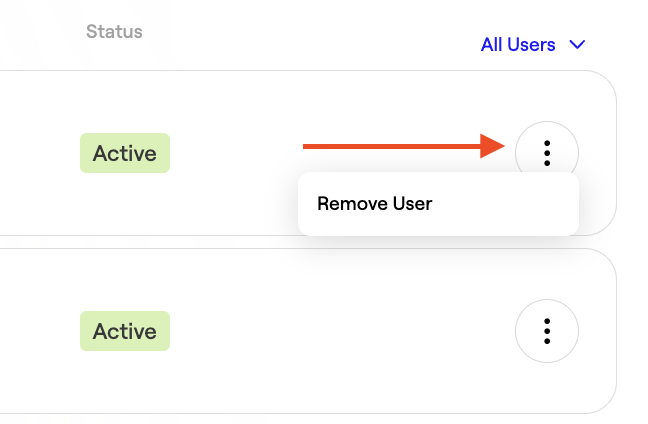
> Note: Removing a user does not delete content they previously created.
Best Practices for Role Management
- Review user roles quarterly
- Apply the principle of least privilege (only grant necessary access)
- Remove access immediately when team members leave
Frequently Asked Questions
Can I assign multiple roles to a user?
No. Each user can only have one role at a time.
Can roles be customized?
Role customization depends on your plan. Contact your Spokn administrator or support team for advanced permission configurations.
What happens if I downgrade someone’s role?
They will immediately lose access to any permissions tied to their previous role.