

How to Log In to Spokn
Last updated July 21, 2026
Step-by-step guide for first-time and returning users
Welcome to Spokn! This guide walks you through how to log in and access your workspace so you can start creating and sharing stories right away.
Before You Begin
Make sure:
- You’ve been added to your company’s Spokn workspace
- You have access to your work email inbox
- You’re using a supported browser (Chrome, Safari, Edge, or Firefox recommended)
If you’re unsure whether you’ve been added, contact your internal Spokn Admin before attempting to log in.
There are 2 options to log in to Spokn:
- Log in with your work email
- Log in with SSO
Option 1: Log In with Your Work Email
Most Spokn users log in using secure, passwordless authentication. Instead of creating a password, you’ll receive a one-time verification code via email.
Step 1: Go to the Login Page
- Open your browser.
- Navigate to: https://app.getspokn.com/login
- You’ll land on the main login screen.
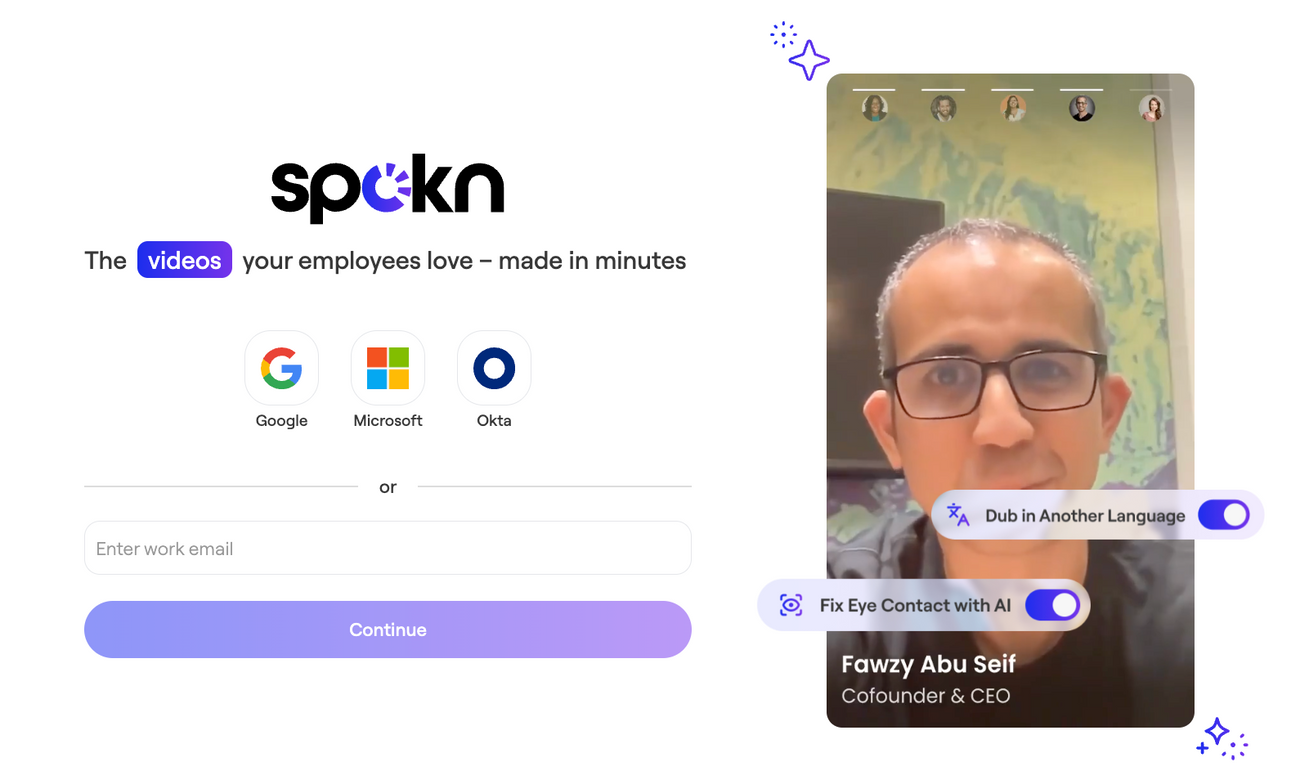
Step 2: Log in with Your Work Email
- Enter your official work email address.
- Click Continue.
Make sure you’re using the exact email address your company used to invite you.
Step 3: Check Your Inbox for a One-Time Code
Spokn uses secure passwordless login.
- Open your work email inbox.
- Look for an email containing your one-time login code.
- Copy the code.
If you don’t see the email:
- Check your Spam or Junk folder
- Wait 1–2 minutes
- Request a new code from the login screen
The code is time-sensitive. If it expires, simply repeat Step 2 to generate a new one.
Step 4: Enter the Code
- Return to the login page.
- Paste or type the one-time code into the verification field.
- Click Submit.
You’ll now be logged into your workspace.
Option 2: Log In with Single Sign-On (SSO)
Some organizations use Single Sign-On (SSO) for added security. If your company uses SSO, you’ll log in through your company’s identity provider (such as Okta, Azure AD, or Google Workspace).
To log in with SSO:
- Go to https://app.getspokn.com/login
- Enter your work email
- We'll redirect you to your SSO login page.
- Complete your company’s authentication steps (password, multi-factor authentication, etc.)
If your organization uses SSO and you cannot access Spokn, you may need to be assigned to the Spokn app in your company’s internal system. Contact your IT team or internal Spokn Admin for assistance.
Frequently Asked Questions
I did not receive my login code
- Confirm you entered the correct work email address
- Check your Spam or Junk folder
- Wait a minute and request a new code
- Make sure your company has invited you to the workspace
If the issue continues, contact your internal Spokn Admin or Spokn Support.
I am using the wrong email address
Spokn access is tied to the email address your company invited. You must log in using your official work email.
I am logging in but do not see the Start Story button
When users can't create stories, it means they aren't on the user list as Creators, and an Admin needs to assign them a seat.
Please verify your role with your Spokn Admin.
I cannot log in and my company uses SSO
If your organization uses SSO:
- Confirm you are assigned to the Spokn app in your company’s system
- Ensure you are logging in through the SSO option
- Contact your IT team if access has not yet been granted
Both internal SSO access and Spokn workspace access may need to be configured.
I was able to log in before, but now I cannot access Spokn
- Confirm your company has not changed its SSO settings
- Check that you are still assigned to the Spokn application internally
- Contact your internal Spokn Admin to verify your role and access
If needed, the Spokn team can help troubleshoot the Spokn-side settings.
Need Help?
If you continue to experience login issues, contact the Spokn team for support.