

Editing Video by Editing the Transcript (Magic Editor Guide)
Last updated July 21, 2026
Overview
Magic Editor allows you to edit a video clip simply by editing its transcript - as though it were a Word document.
When you remove text from the transcript, the corresponding video content is automatically removed.
How to Use Magic Editor
- Open your Story.
- Click the Edit Clip icon next to the clip you want to edit.

- Navigate to Magic Editor
- View the auto-generated transcript.
- Highlight and delete text you want removed.
- Confirm changes.
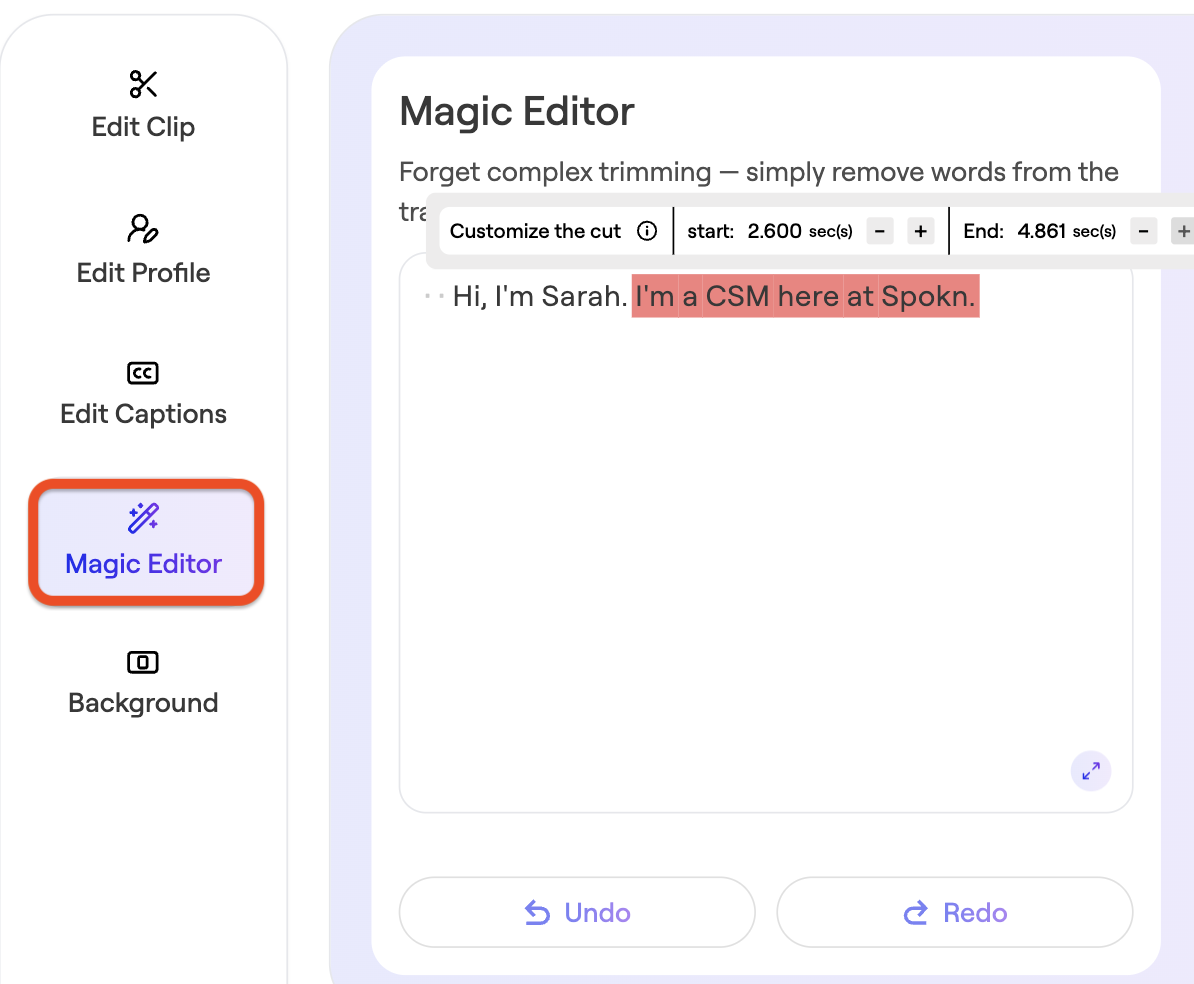
Spokn updates the video automatically.
When to Use Magic Editor
- Remove filler words
- Tighten long answers
- Cut repetitive phrasing
- Clean up pauses
The Magic Editor works great for multiple cuts and edits, but it's designed to handle up to around 10 edits per file. Beyond that, the repeated processing starts to affect the output quality.
Here's what we recommend:
- Record the video with fewer errors to minimize the need for heavy editing
- Keep edits to a maximum of 10 per file to maintain video quality
This is the fastest way to polish submissions without manual timeline editing.
Was this article helpful?