

How to Upload a Clip for Someone Else
Last updated July 21, 2026
Overview
If you've received a video from a colleague, leader, or contributor outside of Spokn, you can upload it on their behalf and associate it with their profile instead of your own.
This ensures the clip displays the correct contributor's name, title, and profile photo in your story.
Upload a Clip Under Your Profile
- Open your Story.
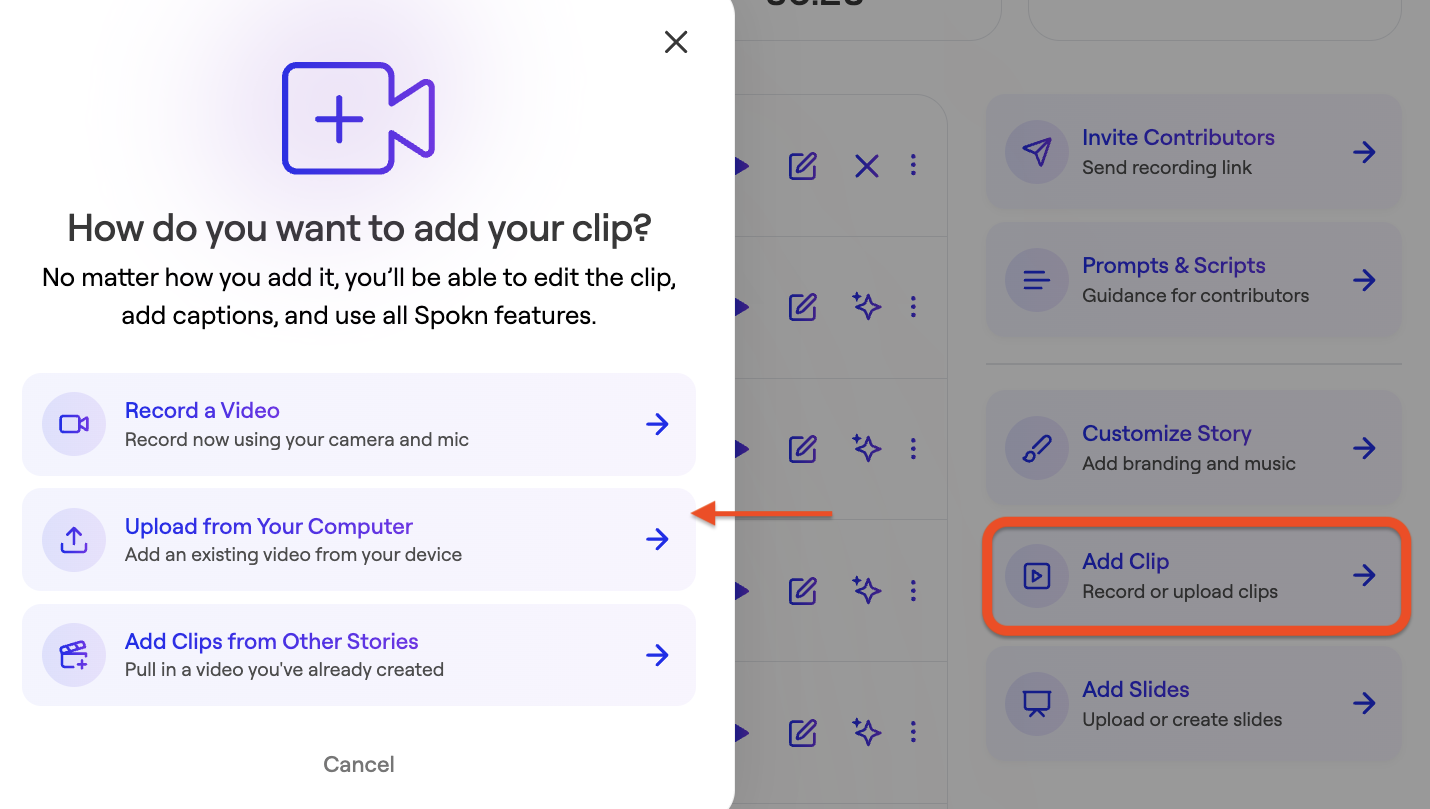
- Select Add Clip.
- Select Upload from Your Computer.
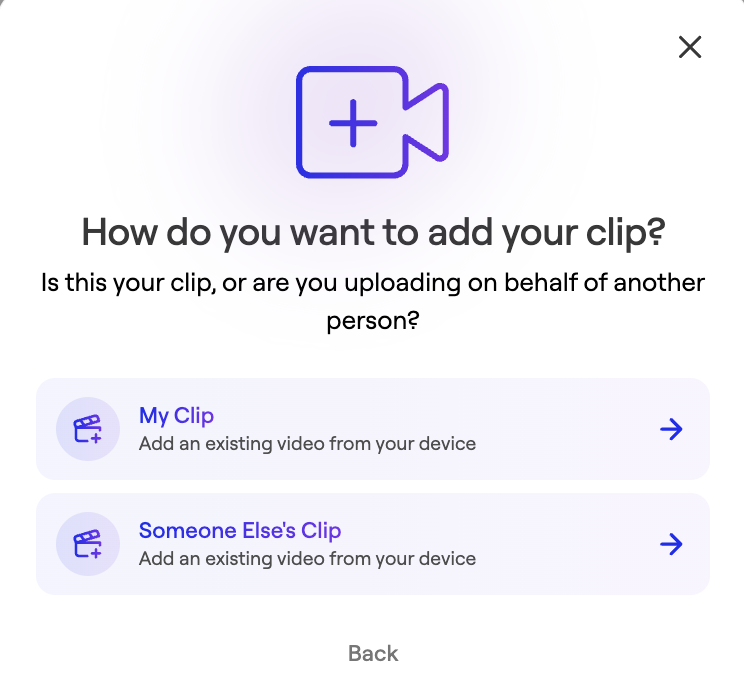
- Select Someone Else's Clip
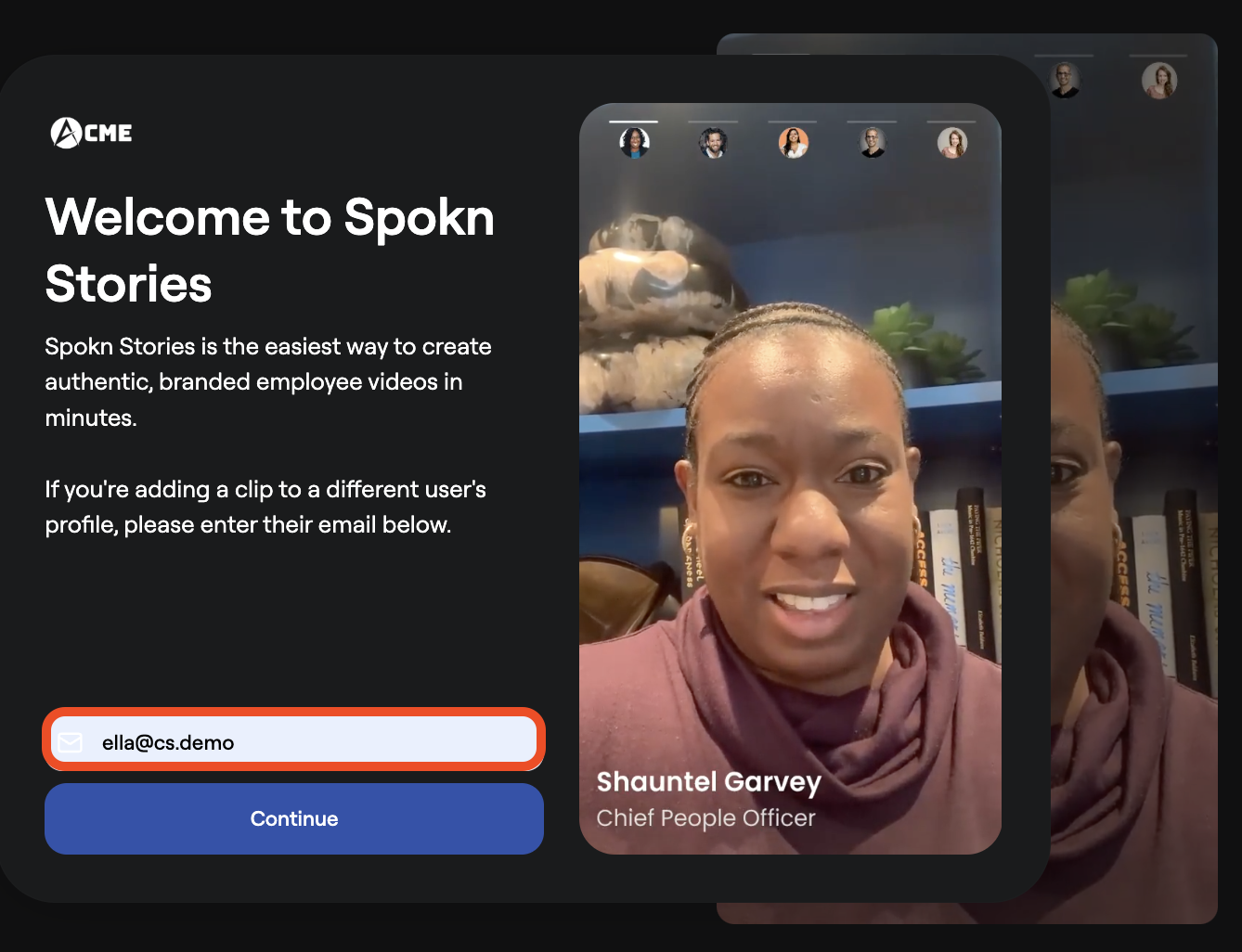
- Ensure you're entering the contributor's email address, not yours, as this will be linked to their name, title, and profile photo in your story and account.
- Click Continue
- Upload the clip
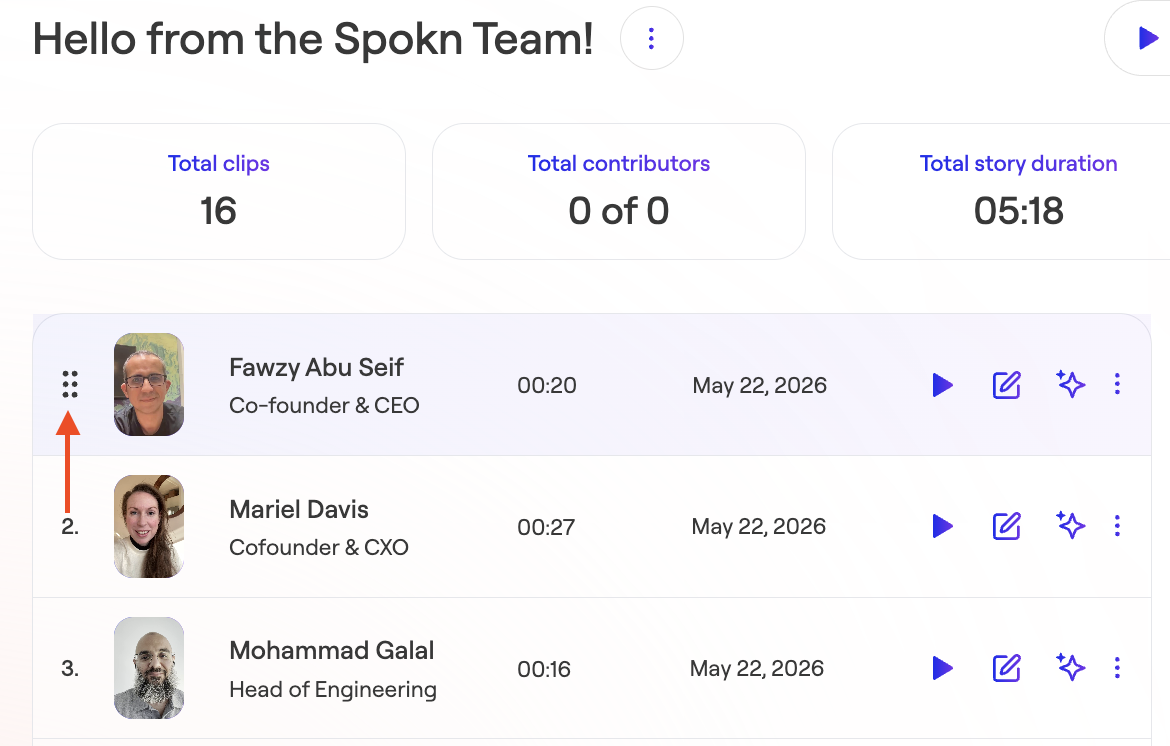
- Reorder your clips if necessary
Tips
- Double-check that you've added the correct email address for your contributor before uploading.
- If you're uploading your own video, choose Your Clip (to be linked) instead.
- Uploaded videos can be edited just like clips recorded directly in Spokn.
Was this article helpful?